> ## Documentation Index
> Fetch the complete documentation index at: https://docs-staging-update-anonymous-sessons-ea.mintlify.site/llms.txt
> Use this file to discover all available pages before exploring further.

> Forms for Actions を使用して、ユーザーが新しい利用規約または同意に関する更新内容を確認して承諾できるように、更新ポリシーフォームを設定する方法を学びます。

# ユースケース: Forms を使用して更新ポリシーフォームを設定する

<Card title="始める前に">
  1. 次のスコープを有効にして、[Machine-to-Machine Application](/docs/ja-jp/get-started/auth0-overview/create-applications/machine-to-machine-apps) を作成します。

  * `read:users`
  * `update:users`
  * `create:users`
  * `read:users_app_metadata`
  * `update:users_app_metadata`
  * `create:users_app_metadata`

  2. M2M アプリケーションの認証情報を使用して、[Vault 接続](/docs/ja-jp/customize/forms/vault) を追加します。
</Card>

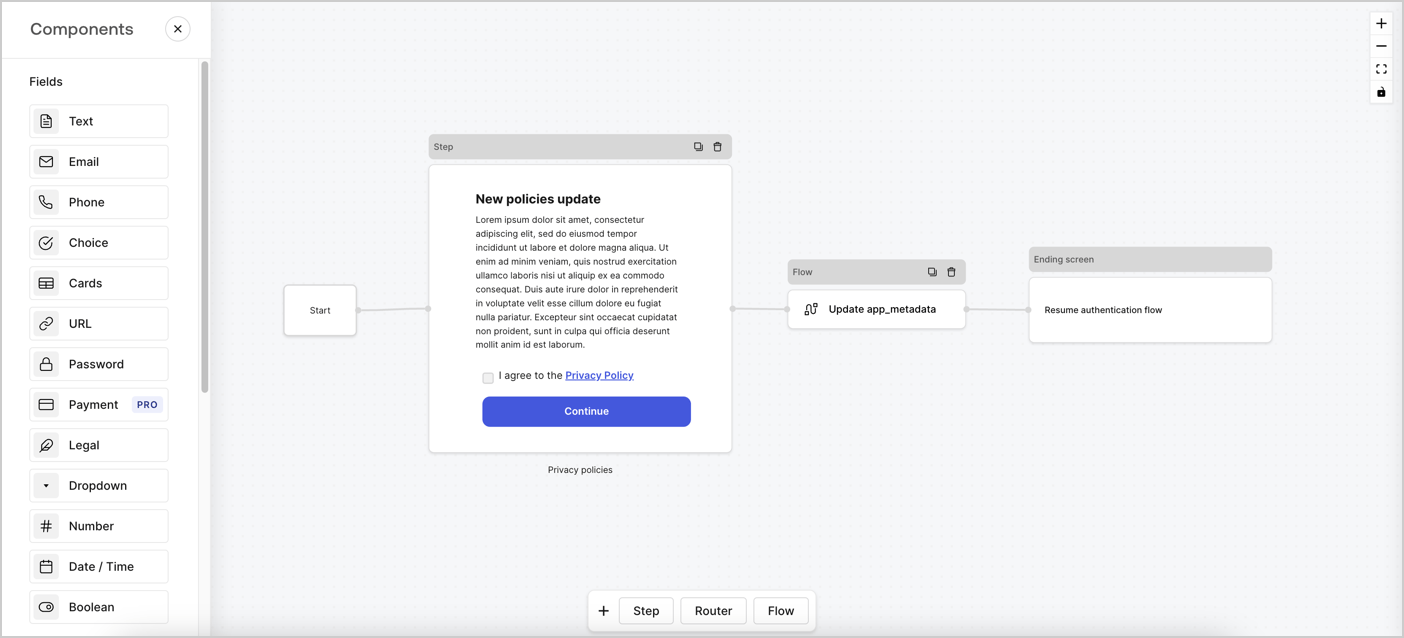
Forms for Actions では、カスタムのプライバシーポリシーフローを作成し、その同意内容を `app_metadata` オブジェクトに保存できます。
<Frame>
  <img src="https://mintcdn.com/docs-staging-update-anonymous-sessons-ea/PNS305OgYH0rOlt7/docs/images/cdy7uua7fh8z/6i68dMvHDTijfRmSgN1x8Q/ad900e7d4c0fb34645921435472b8684/privavy-policy-form.png?fit=max&auto=format&n=PNS305OgYH0rOlt7&q=85&s=640d29754947c38ac201010851e32a4f" alt="Dashboard > Actions > Forms > Privacy policy use case" data-og-width="1404" width="1404" data-og-height="638" height="638" data-path="docs/images/cdy7uua7fh8z/6i68dMvHDTijfRmSgN1x8Q/ad900e7d4c0fb34645921435472b8684/privavy-policy-form.png" data-optimize="true" data-opv="3" srcset="https://mintcdn.com/docs-staging-update-anonymous-sessons-ea/PNS305OgYH0rOlt7/docs/images/cdy7uua7fh8z/6i68dMvHDTijfRmSgN1x8Q/ad900e7d4c0fb34645921435472b8684/privavy-policy-form.png?w=280&fit=max&auto=format&n=PNS305OgYH0rOlt7&q=85&s=ea4f510ed6acacd0983942362c3ad229 280w, https://mintcdn.com/docs-staging-update-anonymous-sessons-ea/PNS305OgYH0rOlt7/docs/images/cdy7uua7fh8z/6i68dMvHDTijfRmSgN1x8Q/ad900e7d4c0fb34645921435472b8684/privavy-policy-form.png?w=560&fit=max&auto=format&n=PNS305OgYH0rOlt7&q=85&s=876913e8f6f83d0a7fbbd7473cbd1c9e 560w, https://mintcdn.com/docs-staging-update-anonymous-sessons-ea/PNS305OgYH0rOlt7/docs/images/cdy7uua7fh8z/6i68dMvHDTijfRmSgN1x8Q/ad900e7d4c0fb34645921435472b8684/privavy-policy-form.png?w=840&fit=max&auto=format&n=PNS305OgYH0rOlt7&q=85&s=adbc8f8cec5f4e5bc2cd60b6e1ada2ae 840w, https://mintcdn.com/docs-staging-update-anonymous-sessons-ea/PNS305OgYH0rOlt7/docs/images/cdy7uua7fh8z/6i68dMvHDTijfRmSgN1x8Q/ad900e7d4c0fb34645921435472b8684/privavy-policy-form.png?w=1100&fit=max&auto=format&n=PNS305OgYH0rOlt7&q=85&s=267ff7645c4d45b47aac4083a9c9dffa 1100w, https://mintcdn.com/docs-staging-update-anonymous-sessons-ea/PNS305OgYH0rOlt7/docs/images/cdy7uua7fh8z/6i68dMvHDTijfRmSgN1x8Q/ad900e7d4c0fb34645921435472b8684/privavy-policy-form.png?w=1650&fit=max&auto=format&n=PNS305OgYH0rOlt7&q=85&s=a8b03f7cebb4d22bda39654e7d76b4ec 1650w, https://mintcdn.com/docs-staging-update-anonymous-sessons-ea/PNS305OgYH0rOlt7/docs/images/cdy7uua7fh8z/6i68dMvHDTijfRmSgN1x8Q/ad900e7d4c0fb34645921435472b8684/privavy-policy-form.png?w=2500&fit=max&auto=format&n=PNS305OgYH0rOlt7&q=85&s=02c121b88076dccda49ccb0a3dad6b87 2500w" />
</Frame>

以下のセクションでは、ノードとフローを使用して更新ポリシーフォームを作成する方法と、そのフォームを [Post Login](/docs/ja-jp/customize/actions/explore-triggers/signup-and-login-triggers/login-trigger) Action に追加する手順について説明します。

<h2 id="create-a-form-from-scratch">
  フォームを一から作成する
</h2>

情報を収集するためのフォームを作成するには、次の手順に従います。

1. **Auth0 Dashboard > Actions > Forms** を選択して、フォームエディターを開きます。
2. **Create Form** > **Start from scratch** を選択します。

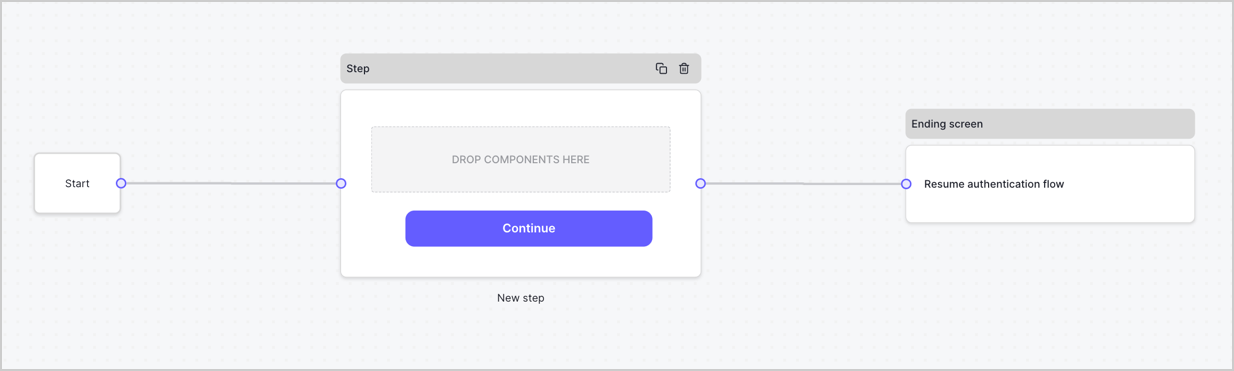
デフォルトでは、新しいフォームには Start ノード、Step ノード、Ending screen ノードが含まれています。
<Frame>
  <img src="https://mintcdn.com/docs-staging-update-anonymous-sessons-ea/D0Y-PVVz1ukwMxCO/docs/images/cdy7uua7fh8z/2TZ9jSjgEcARFpULI6hz4R/a4319a1bd482f2ee5cc23100fdb2f42c/New-form-Forms-for-action-use-case.png?fit=max&auto=format&n=D0Y-PVVz1ukwMxCO&q=85&s=adaf1ed2aeebd7c5235777ee92cd8e38" alt="Dashboard > Forms > Use Cases > Form" data-og-width="1234" width="1234" data-og-height="371" height="371" data-path="docs/images/cdy7uua7fh8z/2TZ9jSjgEcARFpULI6hz4R/a4319a1bd482f2ee5cc23100fdb2f42c/New-form-Forms-for-action-use-case.png" data-optimize="true" data-opv="3" srcset="https://mintcdn.com/docs-staging-update-anonymous-sessons-ea/D0Y-PVVz1ukwMxCO/docs/images/cdy7uua7fh8z/2TZ9jSjgEcARFpULI6hz4R/a4319a1bd482f2ee5cc23100fdb2f42c/New-form-Forms-for-action-use-case.png?w=280&fit=max&auto=format&n=D0Y-PVVz1ukwMxCO&q=85&s=6c5dcb02d160fa65a781463cee30e583 280w, https://mintcdn.com/docs-staging-update-anonymous-sessons-ea/D0Y-PVVz1ukwMxCO/docs/images/cdy7uua7fh8z/2TZ9jSjgEcARFpULI6hz4R/a4319a1bd482f2ee5cc23100fdb2f42c/New-form-Forms-for-action-use-case.png?w=560&fit=max&auto=format&n=D0Y-PVVz1ukwMxCO&q=85&s=f9c725a2b779005a2e7cd551630a537a 560w, https://mintcdn.com/docs-staging-update-anonymous-sessons-ea/D0Y-PVVz1ukwMxCO/docs/images/cdy7uua7fh8z/2TZ9jSjgEcARFpULI6hz4R/a4319a1bd482f2ee5cc23100fdb2f42c/New-form-Forms-for-action-use-case.png?w=840&fit=max&auto=format&n=D0Y-PVVz1ukwMxCO&q=85&s=3e96c6fb1bc1679bf71ef8b6dbf47305 840w, https://mintcdn.com/docs-staging-update-anonymous-sessons-ea/D0Y-PVVz1ukwMxCO/docs/images/cdy7uua7fh8z/2TZ9jSjgEcARFpULI6hz4R/a4319a1bd482f2ee5cc23100fdb2f42c/New-form-Forms-for-action-use-case.png?w=1100&fit=max&auto=format&n=D0Y-PVVz1ukwMxCO&q=85&s=50072ecb41d11bfefdadaf304ddc0504 1100w, https://mintcdn.com/docs-staging-update-anonymous-sessons-ea/D0Y-PVVz1ukwMxCO/docs/images/cdy7uua7fh8z/2TZ9jSjgEcARFpULI6hz4R/a4319a1bd482f2ee5cc23100fdb2f42c/New-form-Forms-for-action-use-case.png?w=1650&fit=max&auto=format&n=D0Y-PVVz1ukwMxCO&q=85&s=a154e2407ab59411335fa8463cc1c209 1650w, https://mintcdn.com/docs-staging-update-anonymous-sessons-ea/D0Y-PVVz1ukwMxCO/docs/images/cdy7uua7fh8z/2TZ9jSjgEcARFpULI6hz4R/a4319a1bd482f2ee5cc23100fdb2f42c/New-form-Forms-for-action-use-case.png?w=2500&fit=max&auto=format&n=D0Y-PVVz1ukwMxCO&q=85&s=208f158e497ff2182ef4a03fdb40242b 2500w" />
</Frame>

<h3 id="configure-the-step-node">
  Step ノードを設定する
</h3>

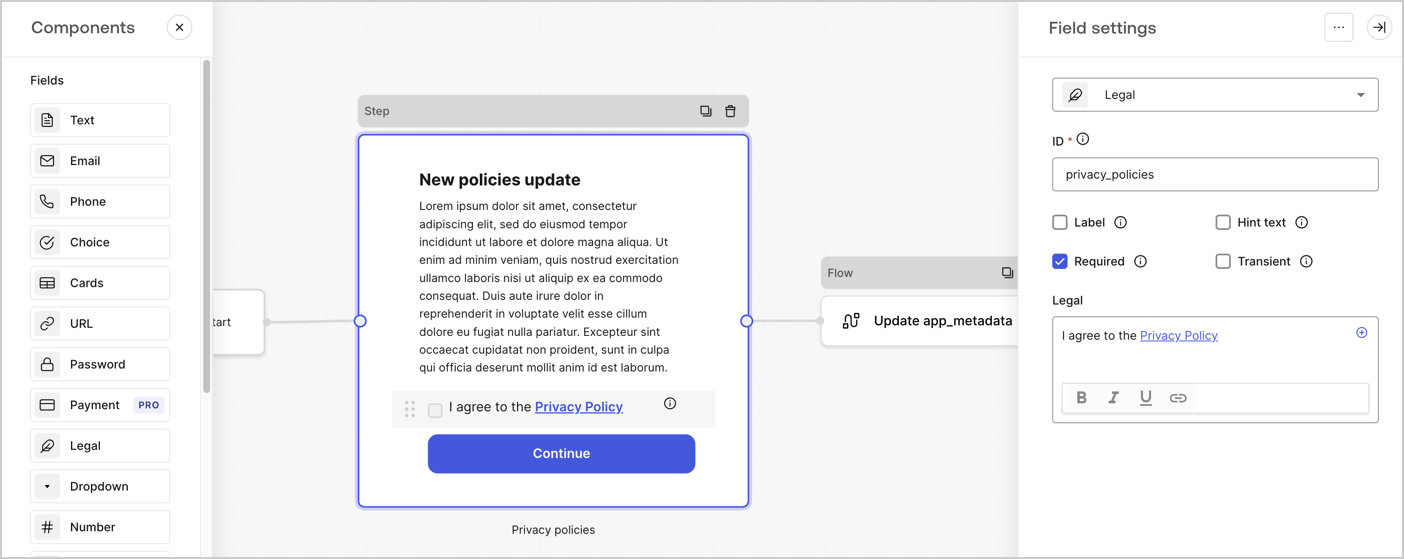
Step ノードは、ユーザーに表示されるグラフィカルインターフェースです。次の手順で、新しい同意の承諾値を収集するための [Fields](/docs/ja-jp/customize/forms/nodes-and-components) を Step ノードに追加します。

1. **Components menu** から **Rich text** フィールドを **Step** ノードにドラッグします。

   * **Rich text**: プライバシーポリシーの更新内容に関する説明を入力します。
   * **Save** を選択します。
2. **Legal** フィールドを **Step** ノードにドラッグします。

   * **ID**: `privacy_policies` と入力します。
   * **Required**: チェックボックスをオンにします。
   * **Legal**: `I agree to the Privacy Policy` と入力します。
   * **Save** を選択します。
3. 保存するには **Publish** を選択します。
<Frame>
  <img src="https://mintcdn.com/docs-staging-update-anonymous-sessons-ea/UZwMKkhNpeWp2SPw/docs/images/cdy7uua7fh8z/59zFFjQjAnjogkc2QGIqqJ/0ad66b1b636544122aa4e65968b76c2c/privacy-policy-step-node.png?fit=max&auto=format&n=UZwMKkhNpeWp2SPw&q=85&s=f682fce1af1401940509cbbc4c00a39b" alt="Dashboard > Actions > Forms > プライバシーポリシーのユースケースの Step ノード" data-og-width="1404" width="1404" data-og-height="559" height="559" data-path="docs/images/cdy7uua7fh8z/59zFFjQjAnjogkc2QGIqqJ/0ad66b1b636544122aa4e65968b76c2c/privacy-policy-step-node.png" data-optimize="true" data-opv="3" srcset="https://mintcdn.com/docs-staging-update-anonymous-sessons-ea/UZwMKkhNpeWp2SPw/docs/images/cdy7uua7fh8z/59zFFjQjAnjogkc2QGIqqJ/0ad66b1b636544122aa4e65968b76c2c/privacy-policy-step-node.png?w=280&fit=max&auto=format&n=UZwMKkhNpeWp2SPw&q=85&s=2bd83cd239065615979d1e43b58689e3 280w, https://mintcdn.com/docs-staging-update-anonymous-sessons-ea/UZwMKkhNpeWp2SPw/docs/images/cdy7uua7fh8z/59zFFjQjAnjogkc2QGIqqJ/0ad66b1b636544122aa4e65968b76c2c/privacy-policy-step-node.png?w=560&fit=max&auto=format&n=UZwMKkhNpeWp2SPw&q=85&s=9c4bfd7a6dc74cc071ceccb6c4979dee 560w, https://mintcdn.com/docs-staging-update-anonymous-sessons-ea/UZwMKkhNpeWp2SPw/docs/images/cdy7uua7fh8z/59zFFjQjAnjogkc2QGIqqJ/0ad66b1b636544122aa4e65968b76c2c/privacy-policy-step-node.png?w=840&fit=max&auto=format&n=UZwMKkhNpeWp2SPw&q=85&s=8b982dd4b91093cd69d964accb8b72e6 840w, https://mintcdn.com/docs-staging-update-anonymous-sessons-ea/UZwMKkhNpeWp2SPw/docs/images/cdy7uua7fh8z/59zFFjQjAnjogkc2QGIqqJ/0ad66b1b636544122aa4e65968b76c2c/privacy-policy-step-node.png?w=1100&fit=max&auto=format&n=UZwMKkhNpeWp2SPw&q=85&s=236c7b562765e0420c976ca4471741b4 1100w, https://mintcdn.com/docs-staging-update-anonymous-sessons-ea/UZwMKkhNpeWp2SPw/docs/images/cdy7uua7fh8z/59zFFjQjAnjogkc2QGIqqJ/0ad66b1b636544122aa4e65968b76c2c/privacy-policy-step-node.png?w=1650&fit=max&auto=format&n=UZwMKkhNpeWp2SPw&q=85&s=1fb0458c2344bf3f595ec94bc242b4fc 1650w, https://mintcdn.com/docs-staging-update-anonymous-sessons-ea/UZwMKkhNpeWp2SPw/docs/images/cdy7uua7fh8z/59zFFjQjAnjogkc2QGIqqJ/0ad66b1b636544122aa4e65968b76c2c/privacy-policy-step-node.png?w=2500&fit=max&auto=format&n=UZwMKkhNpeWp2SPw&q=85&s=17b7962b7135bd5fda758c51bdd8129d 2500w" />
</Frame>

<h3 id="configure-the-flow-node">
  Flow ノードを設定する
</h3>

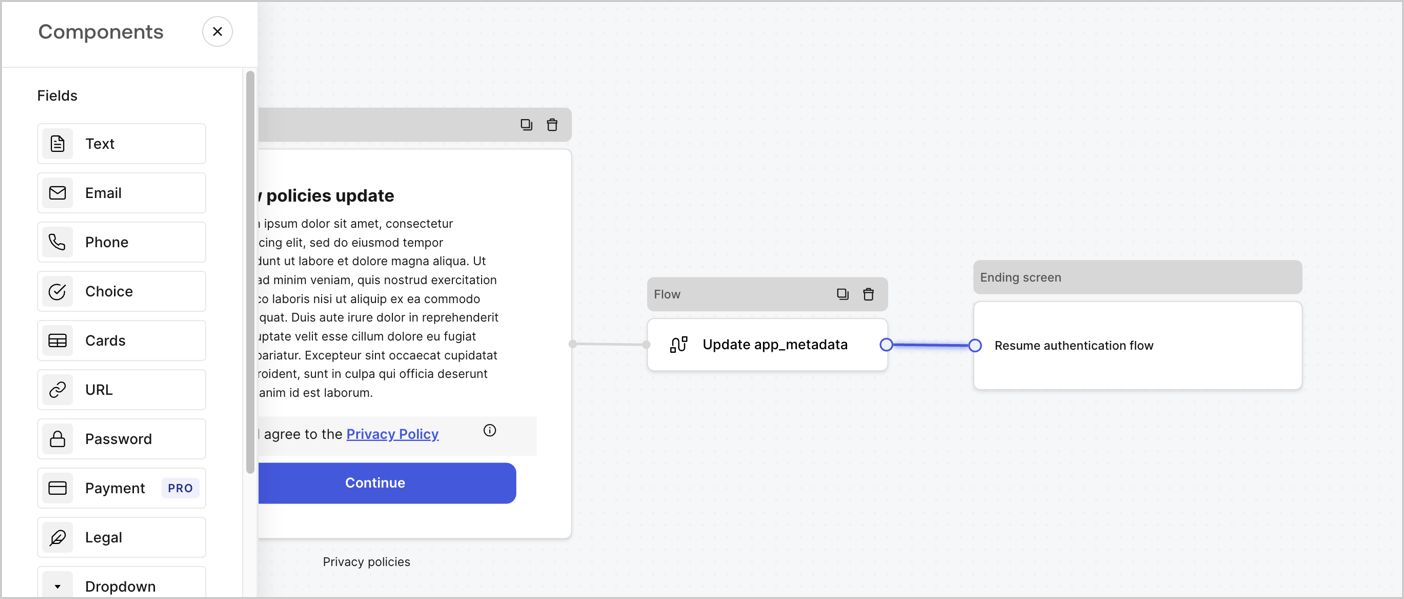
次の手順に従って、**Step** ノードの後に **Flow** ノードを追加し、`app_metadata` を更新して認証フローを再開します。

1. フォームエディターの下部で **Flow** を選択します。
2. **Step** ノードと **Ending Screen** ノードの間にある既存のリンクを削除します。
3. 新しい **Flow** > **Click to add a flow** > **Create a new flow.** を選択します。

   * **Name** フィールドに `Update app_metadata` と入力します。
   * **Create** を選択します。
   * **Save** を選択します。
4. 下図のように、**Flow** ノードを **Step** ノードと **Ending Screen** ノードにリンクします。
5. 保存するには **Publish** を選択します。
<Frame>
  <img src="https://mintcdn.com/docs-staging-update-anonymous-sessons-ea/PNS305OgYH0rOlt7/docs/images/cdy7uua7fh8z/6YIkzm7SrpM9LW76AXuRzh/353c518fe82bbaa440836da1d83596d6/link-policies.png?fit=max&auto=format&n=PNS305OgYH0rOlt7&q=85&s=6b2d6bdf31d28819cf75c8a9489da885" alt="Dashboard > Actions > Forms > Form" data-og-width="1404" width="1404" data-og-height="599" height="599" data-path="docs/images/cdy7uua7fh8z/6YIkzm7SrpM9LW76AXuRzh/353c518fe82bbaa440836da1d83596d6/link-policies.png" data-optimize="true" data-opv="3" srcset="https://mintcdn.com/docs-staging-update-anonymous-sessons-ea/PNS305OgYH0rOlt7/docs/images/cdy7uua7fh8z/6YIkzm7SrpM9LW76AXuRzh/353c518fe82bbaa440836da1d83596d6/link-policies.png?w=280&fit=max&auto=format&n=PNS305OgYH0rOlt7&q=85&s=793b26a6599656380b25672842143ce2 280w, https://mintcdn.com/docs-staging-update-anonymous-sessons-ea/PNS305OgYH0rOlt7/docs/images/cdy7uua7fh8z/6YIkzm7SrpM9LW76AXuRzh/353c518fe82bbaa440836da1d83596d6/link-policies.png?w=560&fit=max&auto=format&n=PNS305OgYH0rOlt7&q=85&s=0d4ea0318c1a9613b1e130de4a009f89 560w, https://mintcdn.com/docs-staging-update-anonymous-sessons-ea/PNS305OgYH0rOlt7/docs/images/cdy7uua7fh8z/6YIkzm7SrpM9LW76AXuRzh/353c518fe82bbaa440836da1d83596d6/link-policies.png?w=840&fit=max&auto=format&n=PNS305OgYH0rOlt7&q=85&s=482a7a7e9494e65e41770f0da173036a 840w, https://mintcdn.com/docs-staging-update-anonymous-sessons-ea/PNS305OgYH0rOlt7/docs/images/cdy7uua7fh8z/6YIkzm7SrpM9LW76AXuRzh/353c518fe82bbaa440836da1d83596d6/link-policies.png?w=1100&fit=max&auto=format&n=PNS305OgYH0rOlt7&q=85&s=147fb03279872c6c5ac88d386548935f 1100w, https://mintcdn.com/docs-staging-update-anonymous-sessons-ea/PNS305OgYH0rOlt7/docs/images/cdy7uua7fh8z/6YIkzm7SrpM9LW76AXuRzh/353c518fe82bbaa440836da1d83596d6/link-policies.png?w=1650&fit=max&auto=format&n=PNS305OgYH0rOlt7&q=85&s=5903e9f2f8bb372a69d0ce470b0b8410 1650w, https://mintcdn.com/docs-staging-update-anonymous-sessons-ea/PNS305OgYH0rOlt7/docs/images/cdy7uua7fh8z/6YIkzm7SrpM9LW76AXuRzh/353c518fe82bbaa440836da1d83596d6/link-policies.png?w=2500&fit=max&auto=format&n=PNS305OgYH0rOlt7&q=85&s=d96c6b3cc377c034713303f615dabce4 2500w" />
</Frame>

次の手順に従って、フローに Auth0 の Update user アクションを追加します。

1. **Flow** **Update app\_metadata** > **Edit flow** を選択し、新しいタブで Flow エディターを開きます。
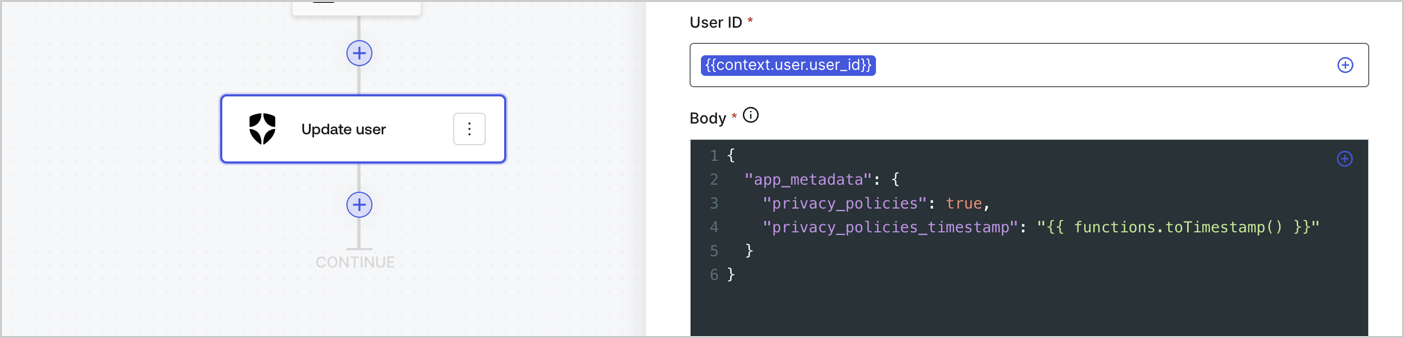
2. StartAction の下にある **+** アイコンを選択して **Update user** アクションを追加します。以下のフィールドに入力し、**Save** を選択して続行します。

   * **Connection**: ドロップダウンから、M2M アプリケーション用の Vault 接続を選択します。

   * **User ID**: `{{context.user.user_id}}` と入力します。

   * **Body**: 次のコードをコピー＆ペーストして、privacy\_policies プロパティと privacy\_policies\_timestamp プロパティで app\_metadata を更新します。

     ```text lines theme={null}
     {
       "app_metadata": {
         "privacy_policies": true,
         "privacy_policies_timestamp": "{{ functions.toTimestamp() }}"
       }
     }
     ```

   * **Save** を選択します。
3. 保存するには **Publish** を選択します。
<Frame>
  <img src="https://mintcdn.com/docs-staging-update-anonymous-sessons-ea/SBl_CGIQHPsUzKe5/docs/images/cdy7uua7fh8z/CvMNIwWrOUwaFW4X3G28p/1fb70ae57a20749d9ffaaba8dc0b7e26/update-user-privacy.png?fit=max&auto=format&n=SBl_CGIQHPsUzKe5&q=85&s=2631acd49a3297fdd8ea775672bb91fb" alt="Dashboard > Actions > Forms > User case privacy policy code" data-og-width="1404" width="1404" data-og-height="338" height="338" data-path="docs/images/cdy7uua7fh8z/CvMNIwWrOUwaFW4X3G28p/1fb70ae57a20749d9ffaaba8dc0b7e26/update-user-privacy.png" data-optimize="true" data-opv="3" srcset="https://mintcdn.com/docs-staging-update-anonymous-sessons-ea/SBl_CGIQHPsUzKe5/docs/images/cdy7uua7fh8z/CvMNIwWrOUwaFW4X3G28p/1fb70ae57a20749d9ffaaba8dc0b7e26/update-user-privacy.png?w=280&fit=max&auto=format&n=SBl_CGIQHPsUzKe5&q=85&s=389c5257c5486d81fa197c1cad05e4a9 280w, https://mintcdn.com/docs-staging-update-anonymous-sessons-ea/SBl_CGIQHPsUzKe5/docs/images/cdy7uua7fh8z/CvMNIwWrOUwaFW4X3G28p/1fb70ae57a20749d9ffaaba8dc0b7e26/update-user-privacy.png?w=560&fit=max&auto=format&n=SBl_CGIQHPsUzKe5&q=85&s=4da15cc8012b02090864043018dbc9ec 560w, https://mintcdn.com/docs-staging-update-anonymous-sessons-ea/SBl_CGIQHPsUzKe5/docs/images/cdy7uua7fh8z/CvMNIwWrOUwaFW4X3G28p/1fb70ae57a20749d9ffaaba8dc0b7e26/update-user-privacy.png?w=840&fit=max&auto=format&n=SBl_CGIQHPsUzKe5&q=85&s=23bdfcd150c1e5197fc7dbbdc7ed32a7 840w, https://mintcdn.com/docs-staging-update-anonymous-sessons-ea/SBl_CGIQHPsUzKe5/docs/images/cdy7uua7fh8z/CvMNIwWrOUwaFW4X3G28p/1fb70ae57a20749d9ffaaba8dc0b7e26/update-user-privacy.png?w=1100&fit=max&auto=format&n=SBl_CGIQHPsUzKe5&q=85&s=3eb094ebc24db51bffe45d943d099169 1100w, https://mintcdn.com/docs-staging-update-anonymous-sessons-ea/SBl_CGIQHPsUzKe5/docs/images/cdy7uua7fh8z/CvMNIwWrOUwaFW4X3G28p/1fb70ae57a20749d9ffaaba8dc0b7e26/update-user-privacy.png?w=1650&fit=max&auto=format&n=SBl_CGIQHPsUzKe5&q=85&s=248af805d2fe08b302c08c1104122d83 1650w, https://mintcdn.com/docs-staging-update-anonymous-sessons-ea/SBl_CGIQHPsUzKe5/docs/images/cdy7uua7fh8z/CvMNIwWrOUwaFW4X3G28p/1fb70ae57a20749d9ffaaba8dc0b7e26/update-user-privacy.png?w=2500&fit=max&auto=format&n=SBl_CGIQHPsUzKe5&q=85&s=699546db5588e66f71e7ad4d101e40b1 2500w" />
</Frame>

<Callout icon="file-lines" color="#0EA5E9" iconType="regular">
  フロー **Update app\_metadata** では、app`_metadata` オブジェクトに `privacy_policies: true` を追加し、さらに [helper function.](/docs/ja-jp/customize/forms/variables) を使ってタイムスタンプを生成します。
</Callout>

<h2 id="retrieve-the-form-render-code">
  フォームのレンダリングコードを取得する
</h2>

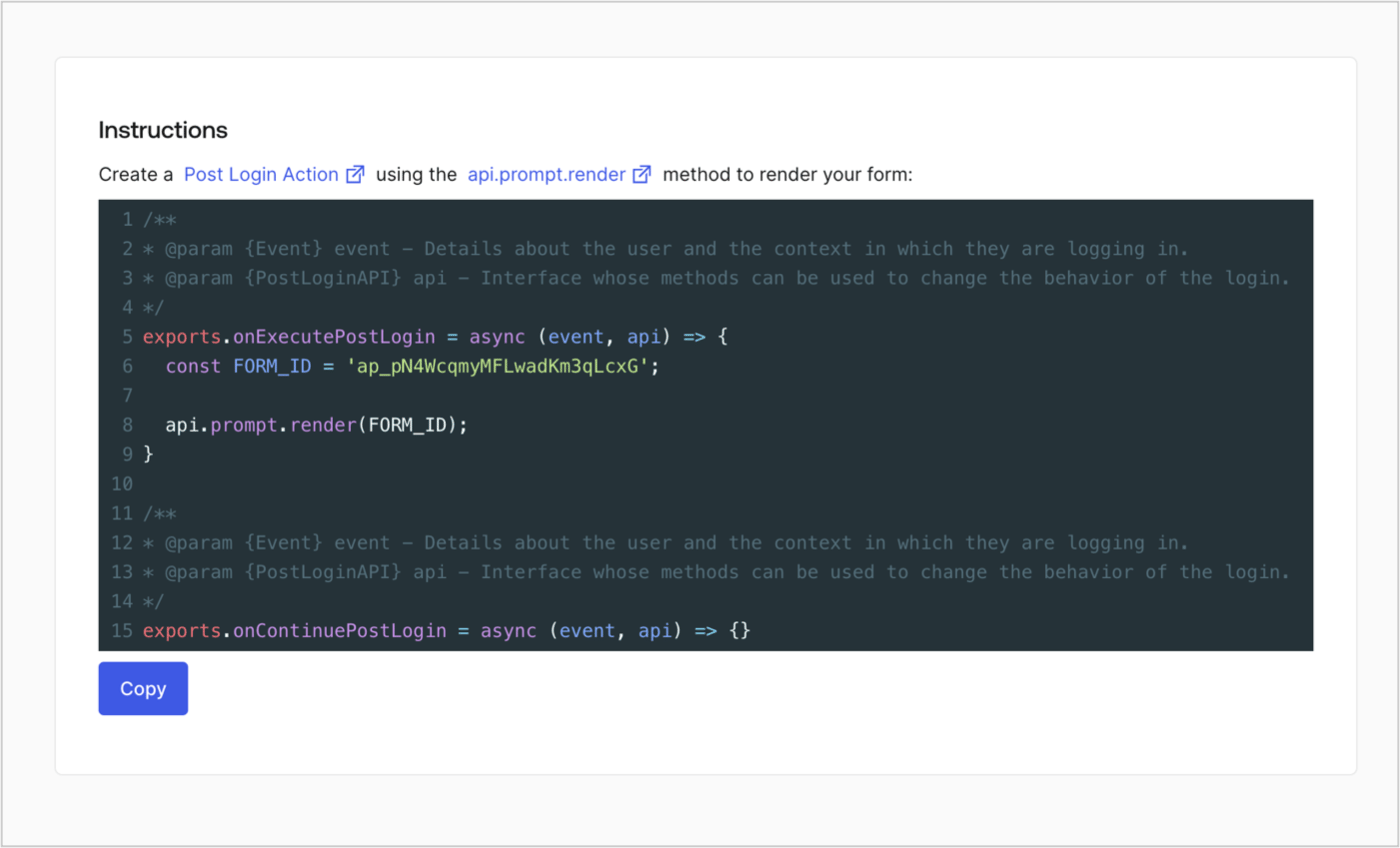
以下の手順に従って、カスタムの Post Login Action でフォームを表示するためのレンダリングコードを取得します。

* フォームエディターで、**`<> Render`** を選択します。
* **Copy** を選択します。
<Frame>
  <img src="https://mintcdn.com/docs-staging-update-anonymous-sessons-ea/D0Y-PVVz1ukwMxCO/docs/images/cdy7uua7fh8z/2EIUzc539sq9lwoTKbjoJv/496a864c0fc44a782c9cadca119dbfb0/embed.png?fit=max&auto=format&n=D0Y-PVVz1ukwMxCO&q=85&s=dc4439316a9b59920f47910d0a0776ca" alt="Dashboard > Actions > Forms > Form > Embed" data-og-width="1400" width="1400" data-og-height="848" height="848" data-path="docs/images/cdy7uua7fh8z/2EIUzc539sq9lwoTKbjoJv/496a864c0fc44a782c9cadca119dbfb0/embed.png" data-optimize="true" data-opv="3" srcset="https://mintcdn.com/docs-staging-update-anonymous-sessons-ea/D0Y-PVVz1ukwMxCO/docs/images/cdy7uua7fh8z/2EIUzc539sq9lwoTKbjoJv/496a864c0fc44a782c9cadca119dbfb0/embed.png?w=280&fit=max&auto=format&n=D0Y-PVVz1ukwMxCO&q=85&s=7f02b7a83cbb526d8049a2ed1c94d600 280w, https://mintcdn.com/docs-staging-update-anonymous-sessons-ea/D0Y-PVVz1ukwMxCO/docs/images/cdy7uua7fh8z/2EIUzc539sq9lwoTKbjoJv/496a864c0fc44a782c9cadca119dbfb0/embed.png?w=560&fit=max&auto=format&n=D0Y-PVVz1ukwMxCO&q=85&s=1586a1c8c751b17ca9f13b5a38085d65 560w, https://mintcdn.com/docs-staging-update-anonymous-sessons-ea/D0Y-PVVz1ukwMxCO/docs/images/cdy7uua7fh8z/2EIUzc539sq9lwoTKbjoJv/496a864c0fc44a782c9cadca119dbfb0/embed.png?w=840&fit=max&auto=format&n=D0Y-PVVz1ukwMxCO&q=85&s=b23bd2140061eabe1c474c50e5de5d3f 840w, https://mintcdn.com/docs-staging-update-anonymous-sessons-ea/D0Y-PVVz1ukwMxCO/docs/images/cdy7uua7fh8z/2EIUzc539sq9lwoTKbjoJv/496a864c0fc44a782c9cadca119dbfb0/embed.png?w=1100&fit=max&auto=format&n=D0Y-PVVz1ukwMxCO&q=85&s=24426c6c9f92047b73ef773a6826e458 1100w, https://mintcdn.com/docs-staging-update-anonymous-sessons-ea/D0Y-PVVz1ukwMxCO/docs/images/cdy7uua7fh8z/2EIUzc539sq9lwoTKbjoJv/496a864c0fc44a782c9cadca119dbfb0/embed.png?w=1650&fit=max&auto=format&n=D0Y-PVVz1ukwMxCO&q=85&s=caa636b6944bd05d26c31bda12c7516c 1650w, https://mintcdn.com/docs-staging-update-anonymous-sessons-ea/D0Y-PVVz1ukwMxCO/docs/images/cdy7uua7fh8z/2EIUzc539sq9lwoTKbjoJv/496a864c0fc44a782c9cadca119dbfb0/embed.png?w=2500&fit=max&auto=format&n=D0Y-PVVz1ukwMxCO&q=85&s=98566ddca1a537d837b9c9072b5890e4 2500w" />
</Frame>

<h2 id="create-a-post-login-action">
  Post Login Action を作成する
</h2>

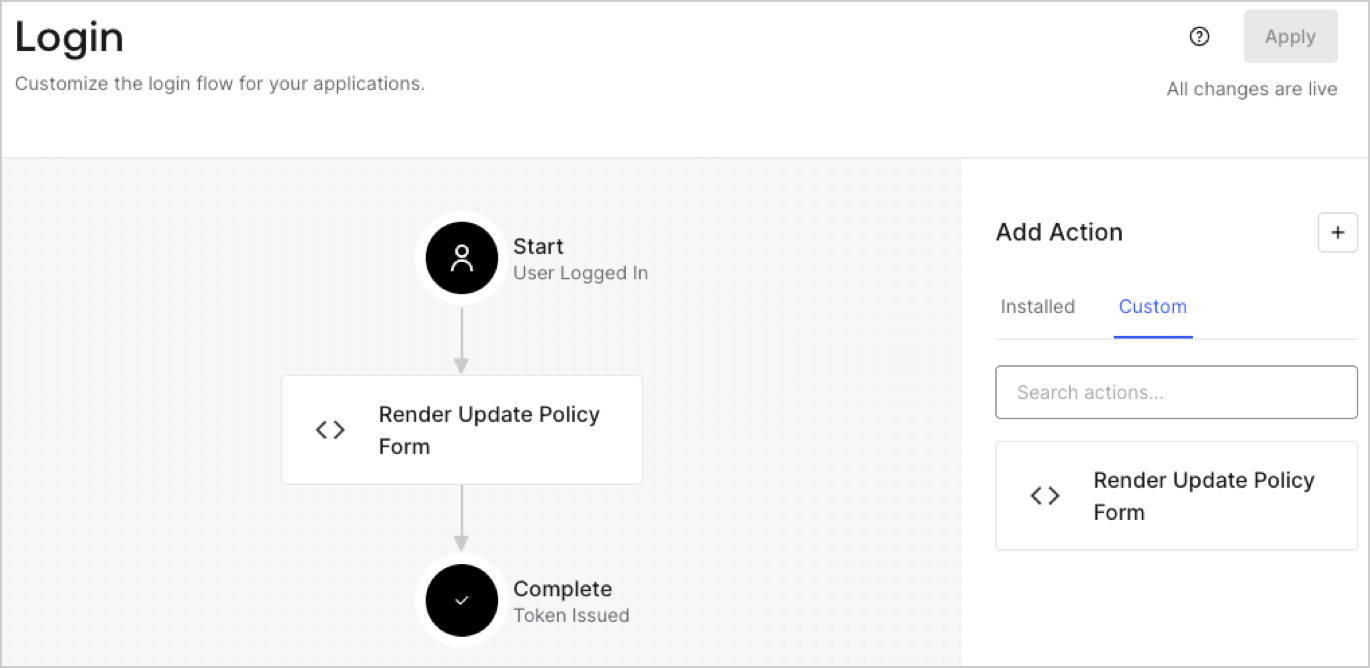
次の手順に従って、フォームを表示する post-login Action を作成します。

1. **Auth0 Dashboard > Actions > Flows > Login** に移動します。
2. **+** アイコンを選択し、**Build from scratch** を選択します。

   * **Name**: `Render Update Policy Form` と入力します。
   * **Trigger**: `Login / Post Login` を選択します。
   * **Runtime**: 推奨バージョンを選択します。
3. **Create** を選択します。

post-login Action を設定するには、次の手順を実行します。

1. Code editor 内の既存のコードを削除します。
2. フォームを表示するコードを Code editor に貼り付けます。
3. フォームを表示するための条件ロジックを定義するよう、コードを編集します。

   ```javascript lines theme={null}
   /**
   * @param {Event} event - ユーザーと、そのユーザーがログインしているコンテキストに関する詳細。
   * @param {PostLoginAPI} api - ログインの動作を変更するためにメソッドを使用できるインターフェース。
   */
   exports.onExecutePostLogin = async (event, api) => {
     const FORM_ID = 'REPLACE_WITH_YOUR_FORM_ID';

     if (event.user.app_metadata.privacy_policies !== true) {
       api.prompt.render(FORM_ID);
     }
   }

   exports.onContinuePostLogin = async (event, api) => { }
   ```

   <Callout icon="file-lines" color="#0EA5E9" iconType="regular">
     上記のコード例では、ユーザーの app metadata に `privacy_policies` プロパティがない場合、フォームが表示されます。
   </Callout>
4. **Deploy** を選択します。
5. **Render Update Policy Form** Action を **Login** フローにドラッグ＆ドロップします。

   <Frame>
     <img src="https://mintcdn.com/docs-staging-update-anonymous-sessons-ea/UZwMKkhNpeWp2SPw/docs/images/cdy7uua7fh8z/5TOwDgevZsBqd7yZynUYWU/41ca909dc3007aed4f40ff794a05efa5/postlogin.png?fit=max&auto=format&n=UZwMKkhNpeWp2SPw&q=85&s=c1d2c730a74feaefd4ba9510a9d82b82" alt="Dashboard > Forms > Use Case > Render update policy form login action" data-og-width="1370" width="1370" data-og-height="668" height="668" data-path="docs/images/cdy7uua7fh8z/5TOwDgevZsBqd7yZynUYWU/41ca909dc3007aed4f40ff794a05efa5/postlogin.png" data-optimize="true" data-opv="3" srcset="https://mintcdn.com/docs-staging-update-anonymous-sessons-ea/UZwMKkhNpeWp2SPw/docs/images/cdy7uua7fh8z/5TOwDgevZsBqd7yZynUYWU/41ca909dc3007aed4f40ff794a05efa5/postlogin.png?w=280&fit=max&auto=format&n=UZwMKkhNpeWp2SPw&q=85&s=2ef383c909d629a531852fa0a271f525 280w, https://mintcdn.com/docs-staging-update-anonymous-sessons-ea/UZwMKkhNpeWp2SPw/docs/images/cdy7uua7fh8z/5TOwDgevZsBqd7yZynUYWU/41ca909dc3007aed4f40ff794a05efa5/postlogin.png?w=560&fit=max&auto=format&n=UZwMKkhNpeWp2SPw&q=85&s=d128383ec9f6f5f0a87ec7b9940ec245 560w, https://mintcdn.com/docs-staging-update-anonymous-sessons-ea/UZwMKkhNpeWp2SPw/docs/images/cdy7uua7fh8z/5TOwDgevZsBqd7yZynUYWU/41ca909dc3007aed4f40ff794a05efa5/postlogin.png?w=840&fit=max&auto=format&n=UZwMKkhNpeWp2SPw&q=85&s=d17f0918a4af869da9800fa49f8f146d 840w, https://mintcdn.com/docs-staging-update-anonymous-sessons-ea/UZwMKkhNpeWp2SPw/docs/images/cdy7uua7fh8z/5TOwDgevZsBqd7yZynUYWU/41ca909dc3007aed4f40ff794a05efa5/postlogin.png?w=1100&fit=max&auto=format&n=UZwMKkhNpeWp2SPw&q=85&s=be85fb3c81820274fa5052244e70b8dc 1100w, https://mintcdn.com/docs-staging-update-anonymous-sessons-ea/UZwMKkhNpeWp2SPw/docs/images/cdy7uua7fh8z/5TOwDgevZsBqd7yZynUYWU/41ca909dc3007aed4f40ff794a05efa5/postlogin.png?w=1650&fit=max&auto=format&n=UZwMKkhNpeWp2SPw&q=85&s=007a9ff6779c13fa812654d96baae57e 1650w, https://mintcdn.com/docs-staging-update-anonymous-sessons-ea/UZwMKkhNpeWp2SPw/docs/images/cdy7uua7fh8z/5TOwDgevZsBqd7yZynUYWU/41ca909dc3007aed4f40ff794a05efa5/postlogin.png?w=2500&fit=max&auto=format&n=UZwMKkhNpeWp2SPw&q=85&s=1ffcb832d9923f6f686e90ec9f5be87c 2500w" />
   </Frame>
6. **Apply** を選択します。

<h3 id="test-implementation">
  実装をテストする
</h3>

次の手順に従って、実装をテストします。

1. `app_metadata` 属性の `privacy_policies` に値が設定されていない既存ユーザーでログインします。
2. Login フロー の post-login Action によってフォームが表示され、同意を求めるプロンプトが表示されます。
3. **Auth0 Dashboard > User Management > Users** を選択し、該当するユーザーを見つけて、`app_metadata` 属性の `privacy_policies` に `true` の値とタイムスタンプが含まれていることを確認します。