> ## Documentation Index
> Fetch the complete documentation index at: https://docs-staging-update-anonymous-sessons-ea.mintlify.site/llms.txt
> Use this file to discover all available pages before exploring further.

> Découvrez comment configurer un formulaire de mise à jour de politique à l’aide de Forms for Actions afin que les utilisateurs puissent examiner et accepter de nouvelles conditions d’utilisation ou des mises à jour de consentement.

# Cas d’utilisation : Configurer un formulaire de mise à jour de politique à l’aide de Forms

<Card title="Avant de commencer">
  1. Créez une [application Machine-to-Machine](/docs/fr-ca/get-started/auth0-overview/create-applications/machine-to-machine-apps) avec les scopes suivants activés :

  * `read:users`
  * `update:users`
  * `create:users`
  * `read:users_app_metadata`
  * `update:users_app_metadata`
  * `create:users_app_metadata`

  2. Ajoutez une [connexion Vault](/docs/fr-ca/customize/forms/vault) à l’aide des identifiants de l’application M2M.
</Card>

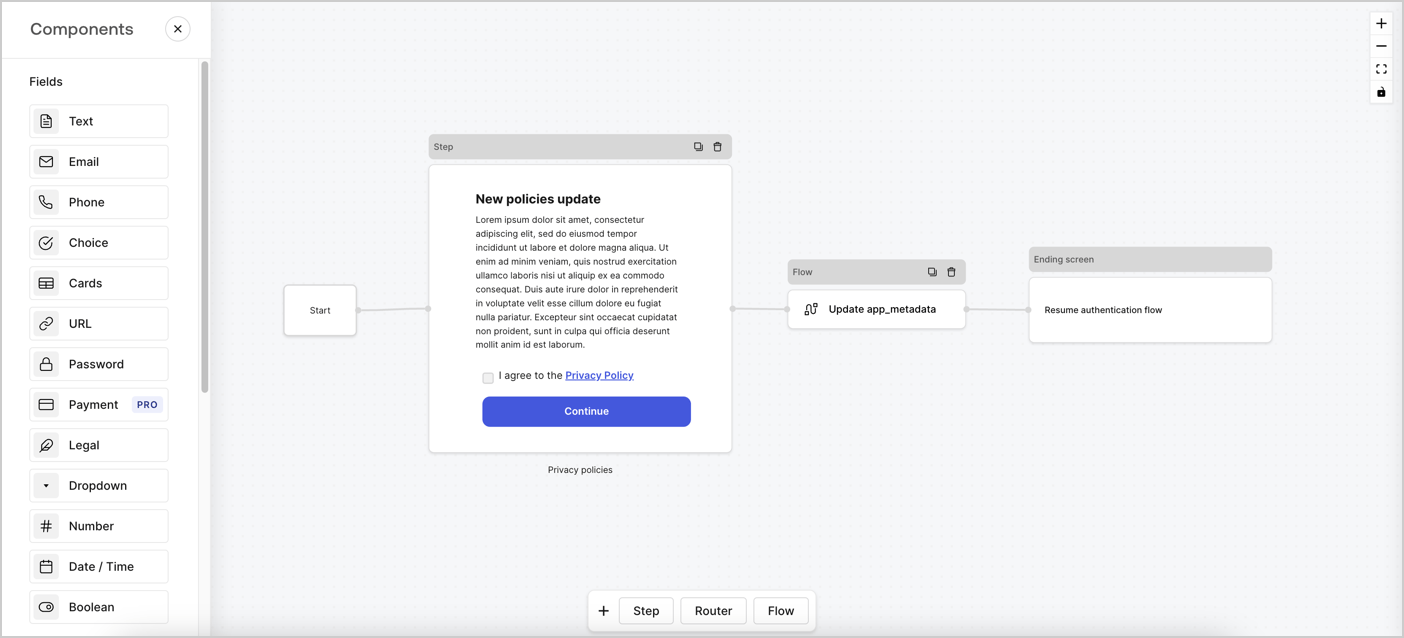
Forms for Actions vous permet de créer des flux personnalisés liés aux politiques de confidentialité et d’enregistrer le consentement dans l’objet `app_metadata`.
<Frame>
  <img src="https://mintcdn.com/docs-staging-update-anonymous-sessons-ea/PNS305OgYH0rOlt7/docs/images/cdy7uua7fh8z/6i68dMvHDTijfRmSgN1x8Q/ad900e7d4c0fb34645921435472b8684/privavy-policy-form.png?fit=max&auto=format&n=PNS305OgYH0rOlt7&q=85&s=640d29754947c38ac201010851e32a4f" alt="Dashboard > Actions > Forms > Cas d’utilisation de politique de confidentialité" data-og-width="1404" width="1404" data-og-height="638" height="638" data-path="docs/images/cdy7uua7fh8z/6i68dMvHDTijfRmSgN1x8Q/ad900e7d4c0fb34645921435472b8684/privavy-policy-form.png" data-optimize="true" data-opv="3" srcset="https://mintcdn.com/docs-staging-update-anonymous-sessons-ea/PNS305OgYH0rOlt7/docs/images/cdy7uua7fh8z/6i68dMvHDTijfRmSgN1x8Q/ad900e7d4c0fb34645921435472b8684/privavy-policy-form.png?w=280&fit=max&auto=format&n=PNS305OgYH0rOlt7&q=85&s=ea4f510ed6acacd0983942362c3ad229 280w, https://mintcdn.com/docs-staging-update-anonymous-sessons-ea/PNS305OgYH0rOlt7/docs/images/cdy7uua7fh8z/6i68dMvHDTijfRmSgN1x8Q/ad900e7d4c0fb34645921435472b8684/privavy-policy-form.png?w=560&fit=max&auto=format&n=PNS305OgYH0rOlt7&q=85&s=876913e8f6f83d0a7fbbd7473cbd1c9e 560w, https://mintcdn.com/docs-staging-update-anonymous-sessons-ea/PNS305OgYH0rOlt7/docs/images/cdy7uua7fh8z/6i68dMvHDTijfRmSgN1x8Q/ad900e7d4c0fb34645921435472b8684/privavy-policy-form.png?w=840&fit=max&auto=format&n=PNS305OgYH0rOlt7&q=85&s=adbc8f8cec5f4e5bc2cd60b6e1ada2ae 840w, https://mintcdn.com/docs-staging-update-anonymous-sessons-ea/PNS305OgYH0rOlt7/docs/images/cdy7uua7fh8z/6i68dMvHDTijfRmSgN1x8Q/ad900e7d4c0fb34645921435472b8684/privavy-policy-form.png?w=1100&fit=max&auto=format&n=PNS305OgYH0rOlt7&q=85&s=267ff7645c4d45b47aac4083a9c9dffa 1100w, https://mintcdn.com/docs-staging-update-anonymous-sessons-ea/PNS305OgYH0rOlt7/docs/images/cdy7uua7fh8z/6i68dMvHDTijfRmSgN1x8Q/ad900e7d4c0fb34645921435472b8684/privavy-policy-form.png?w=1650&fit=max&auto=format&n=PNS305OgYH0rOlt7&q=85&s=a8b03f7cebb4d22bda39654e7d76b4ec 1650w, https://mintcdn.com/docs-staging-update-anonymous-sessons-ea/PNS305OgYH0rOlt7/docs/images/cdy7uua7fh8z/6i68dMvHDTijfRmSgN1x8Q/ad900e7d4c0fb34645921435472b8684/privavy-policy-form.png?w=2500&fit=max&auto=format&n=PNS305OgYH0rOlt7&q=85&s=02c121b88076dccda49ccb0a3dad6b87 2500w" />
</Frame>

Les sections ci-dessous expliquent comment créer un formulaire de mise à jour de politique à l’aide de nœuds et de flux, ainsi que les étapes pour ajouter votre formulaire à une Action [Post Login](/docs/fr-ca/customize/actions/explore-triggers/signup-and-login-triggers/login-trigger).

<h2 id="create-a-form-from-scratch">
  Créer un formulaire à partir de zéro
</h2>

Suivez ces étapes pour créer un formulaire afin de recueillir des informations :

1. Ouvrez l’éditeur de formulaires en sélectionnant **Auth0 Dashboard > Actions > Forms.**
2. Sélectionnez **Create Form** > **Start from scratch**.

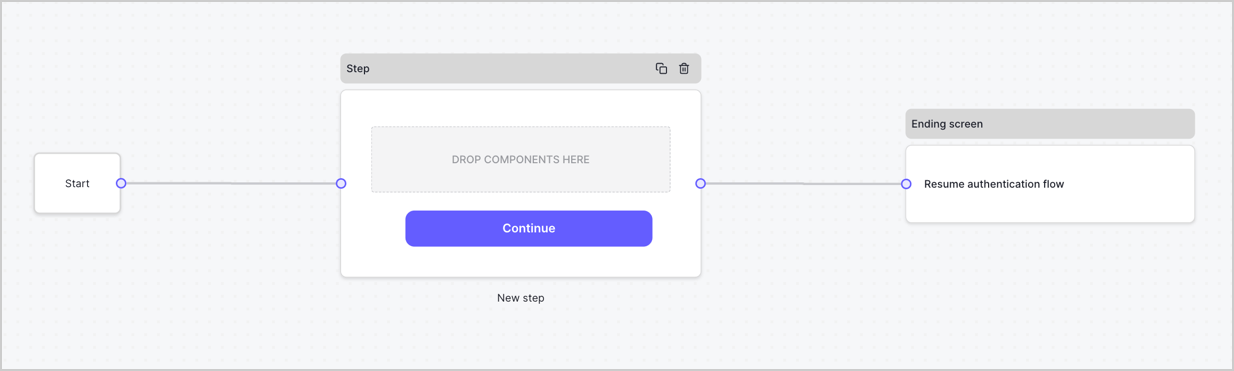
Par défaut, un nouveau formulaire contient un nœud Start, un nœud Step et un nœud Ending screen.
<Frame>
  <img src="https://mintcdn.com/docs-staging-update-anonymous-sessons-ea/D0Y-PVVz1ukwMxCO/docs/images/cdy7uua7fh8z/2TZ9jSjgEcARFpULI6hz4R/a4319a1bd482f2ee5cc23100fdb2f42c/New-form-Forms-for-action-use-case.png?fit=max&auto=format&n=D0Y-PVVz1ukwMxCO&q=85&s=adaf1ed2aeebd7c5235777ee92cd8e38" alt="Dashboard > Forms > Use Cases > Form" data-og-width="1234" width="1234" data-og-height="371" height="371" data-path="docs/images/cdy7uua7fh8z/2TZ9jSjgEcARFpULI6hz4R/a4319a1bd482f2ee5cc23100fdb2f42c/New-form-Forms-for-action-use-case.png" data-optimize="true" data-opv="3" srcset="https://mintcdn.com/docs-staging-update-anonymous-sessons-ea/D0Y-PVVz1ukwMxCO/docs/images/cdy7uua7fh8z/2TZ9jSjgEcARFpULI6hz4R/a4319a1bd482f2ee5cc23100fdb2f42c/New-form-Forms-for-action-use-case.png?w=280&fit=max&auto=format&n=D0Y-PVVz1ukwMxCO&q=85&s=6c5dcb02d160fa65a781463cee30e583 280w, https://mintcdn.com/docs-staging-update-anonymous-sessons-ea/D0Y-PVVz1ukwMxCO/docs/images/cdy7uua7fh8z/2TZ9jSjgEcARFpULI6hz4R/a4319a1bd482f2ee5cc23100fdb2f42c/New-form-Forms-for-action-use-case.png?w=560&fit=max&auto=format&n=D0Y-PVVz1ukwMxCO&q=85&s=f9c725a2b779005a2e7cd551630a537a 560w, https://mintcdn.com/docs-staging-update-anonymous-sessons-ea/D0Y-PVVz1ukwMxCO/docs/images/cdy7uua7fh8z/2TZ9jSjgEcARFpULI6hz4R/a4319a1bd482f2ee5cc23100fdb2f42c/New-form-Forms-for-action-use-case.png?w=840&fit=max&auto=format&n=D0Y-PVVz1ukwMxCO&q=85&s=3e96c6fb1bc1679bf71ef8b6dbf47305 840w, https://mintcdn.com/docs-staging-update-anonymous-sessons-ea/D0Y-PVVz1ukwMxCO/docs/images/cdy7uua7fh8z/2TZ9jSjgEcARFpULI6hz4R/a4319a1bd482f2ee5cc23100fdb2f42c/New-form-Forms-for-action-use-case.png?w=1100&fit=max&auto=format&n=D0Y-PVVz1ukwMxCO&q=85&s=50072ecb41d11bfefdadaf304ddc0504 1100w, https://mintcdn.com/docs-staging-update-anonymous-sessons-ea/D0Y-PVVz1ukwMxCO/docs/images/cdy7uua7fh8z/2TZ9jSjgEcARFpULI6hz4R/a4319a1bd482f2ee5cc23100fdb2f42c/New-form-Forms-for-action-use-case.png?w=1650&fit=max&auto=format&n=D0Y-PVVz1ukwMxCO&q=85&s=a154e2407ab59411335fa8463cc1c209 1650w, https://mintcdn.com/docs-staging-update-anonymous-sessons-ea/D0Y-PVVz1ukwMxCO/docs/images/cdy7uua7fh8z/2TZ9jSjgEcARFpULI6hz4R/a4319a1bd482f2ee5cc23100fdb2f42c/New-form-Forms-for-action-use-case.png?w=2500&fit=max&auto=format&n=D0Y-PVVz1ukwMxCO&q=85&s=208f158e497ff2182ef4a03fdb40242b 2500w" />
</Frame>

<h3 id="configure-the-step-node">
  Configurer le nœud Step
</h3>

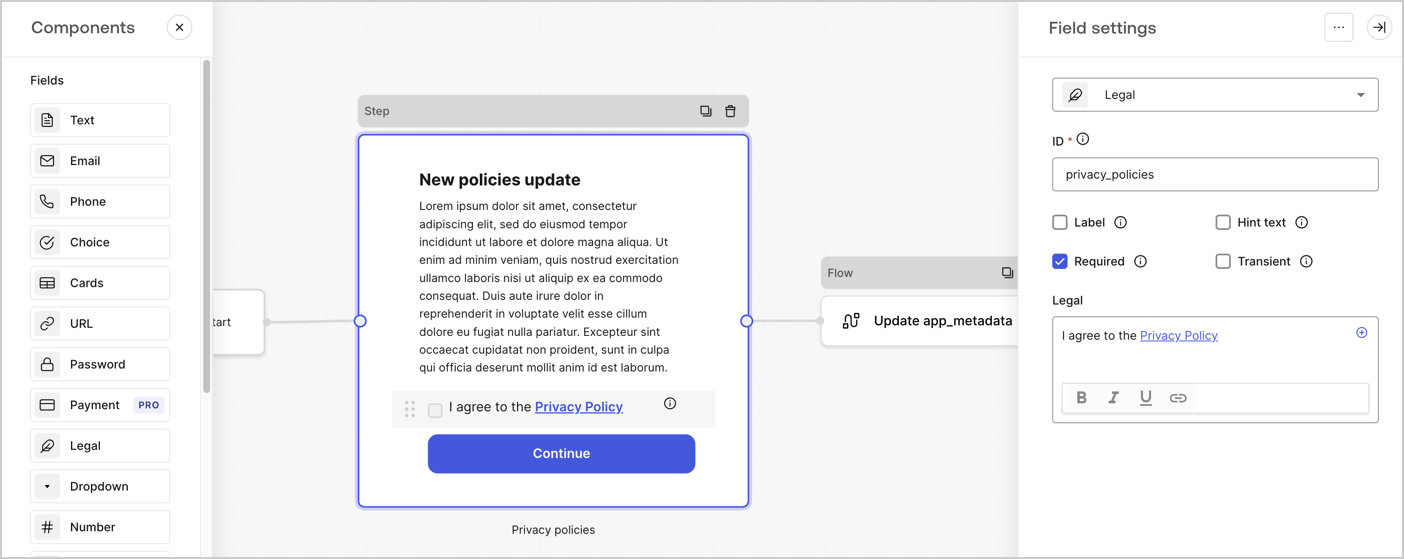
Le nœud Step est l’interface graphique visible par les utilisateurs. Ajoutez des [champs](/docs/fr-ca/customize/forms/nodes-and-components) au nœud Step pour recueillir la nouvelle valeur d’acceptation en suivant ces étapes :

1. Faites glisser un champ **Texte enrichi** du **menu Composants** vers le nœud **Step**.

   * **Texte enrichi** : Saisissez une description des mises à jour apportées à votre politique de confidentialité.
   * Sélectionnez **Enregistrer**.
2. Faites glisser un champ **Juridique** vers le nœud **Step**.

   * **ID** : Saisissez `privacy_policies`.
   * **Obligatoire** : Cochez la case.
   * **Juridique** : Saisissez `J’accepte la politique de confidentialité`.
   * Sélectionnez **Enregistrer**.
3. Sélectionnez **Publier** pour enregistrer.
<Frame>
  <img src="https://mintcdn.com/docs-staging-update-anonymous-sessons-ea/UZwMKkhNpeWp2SPw/docs/images/cdy7uua7fh8z/59zFFjQjAnjogkc2QGIqqJ/0ad66b1b636544122aa4e65968b76c2c/privacy-policy-step-node.png?fit=max&auto=format&n=UZwMKkhNpeWp2SPw&q=85&s=f682fce1af1401940509cbbc4c00a39b" alt="Dashboard > Actions > Forms > Cas d’utilisation du nœud Step de la politique de confidentialité" data-og-width="1404" width="1404" data-og-height="559" height="559" data-path="docs/images/cdy7uua7fh8z/59zFFjQjAnjogkc2QGIqqJ/0ad66b1b636544122aa4e65968b76c2c/privacy-policy-step-node.png" data-optimize="true" data-opv="3" srcset="https://mintcdn.com/docs-staging-update-anonymous-sessons-ea/UZwMKkhNpeWp2SPw/docs/images/cdy7uua7fh8z/59zFFjQjAnjogkc2QGIqqJ/0ad66b1b636544122aa4e65968b76c2c/privacy-policy-step-node.png?w=280&fit=max&auto=format&n=UZwMKkhNpeWp2SPw&q=85&s=2bd83cd239065615979d1e43b58689e3 280w, https://mintcdn.com/docs-staging-update-anonymous-sessons-ea/UZwMKkhNpeWp2SPw/docs/images/cdy7uua7fh8z/59zFFjQjAnjogkc2QGIqqJ/0ad66b1b636544122aa4e65968b76c2c/privacy-policy-step-node.png?w=560&fit=max&auto=format&n=UZwMKkhNpeWp2SPw&q=85&s=9c4bfd7a6dc74cc071ceccb6c4979dee 560w, https://mintcdn.com/docs-staging-update-anonymous-sessons-ea/UZwMKkhNpeWp2SPw/docs/images/cdy7uua7fh8z/59zFFjQjAnjogkc2QGIqqJ/0ad66b1b636544122aa4e65968b76c2c/privacy-policy-step-node.png?w=840&fit=max&auto=format&n=UZwMKkhNpeWp2SPw&q=85&s=8b982dd4b91093cd69d964accb8b72e6 840w, https://mintcdn.com/docs-staging-update-anonymous-sessons-ea/UZwMKkhNpeWp2SPw/docs/images/cdy7uua7fh8z/59zFFjQjAnjogkc2QGIqqJ/0ad66b1b636544122aa4e65968b76c2c/privacy-policy-step-node.png?w=1100&fit=max&auto=format&n=UZwMKkhNpeWp2SPw&q=85&s=236c7b562765e0420c976ca4471741b4 1100w, https://mintcdn.com/docs-staging-update-anonymous-sessons-ea/UZwMKkhNpeWp2SPw/docs/images/cdy7uua7fh8z/59zFFjQjAnjogkc2QGIqqJ/0ad66b1b636544122aa4e65968b76c2c/privacy-policy-step-node.png?w=1650&fit=max&auto=format&n=UZwMKkhNpeWp2SPw&q=85&s=1fb0458c2344bf3f595ec94bc242b4fc 1650w, https://mintcdn.com/docs-staging-update-anonymous-sessons-ea/UZwMKkhNpeWp2SPw/docs/images/cdy7uua7fh8z/59zFFjQjAnjogkc2QGIqqJ/0ad66b1b636544122aa4e65968b76c2c/privacy-policy-step-node.png?w=2500&fit=max&auto=format&n=UZwMKkhNpeWp2SPw&q=85&s=17b7962b7135bd5fda758c51bdd8129d 2500w" />
</Frame>

<h3 id="configure-the-flow-node">
  Configurer le nœud **Flow**
</h3>

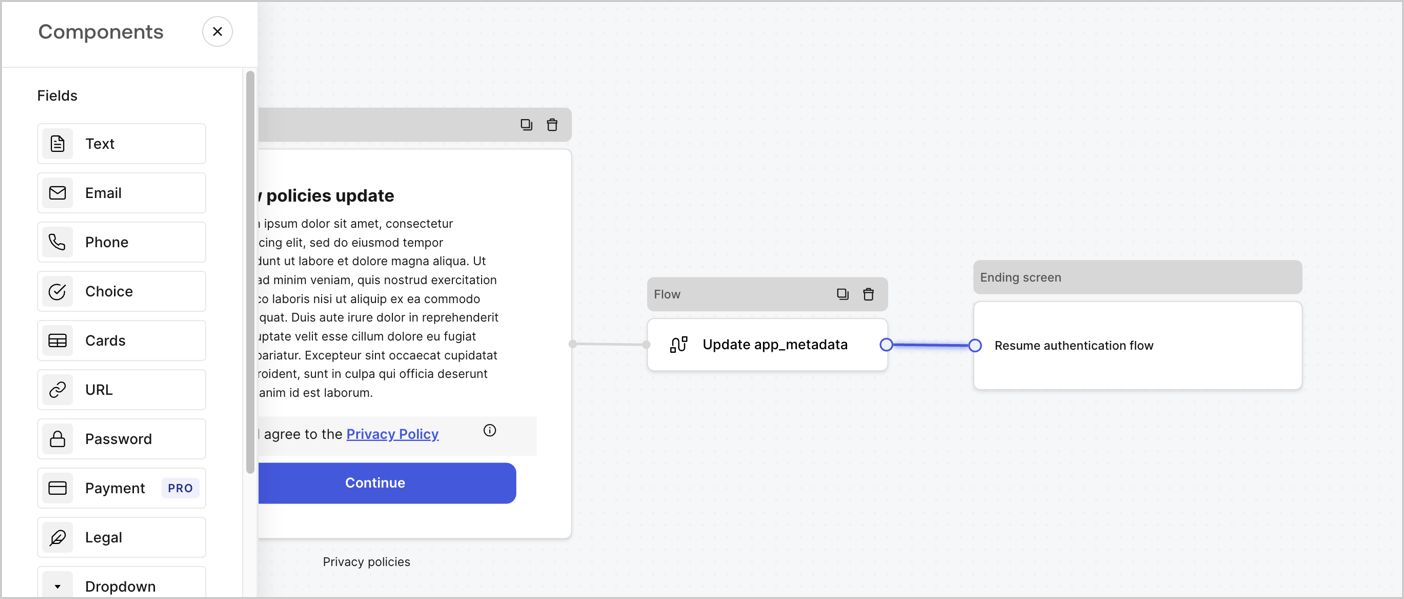
Ajoutez un nœud **Flow** après le nœud **Step** pour mettre à jour `app_metadata` et reprendre le flux d’authentification en suivant les étapes ci-dessous :

1. Sélectionnez **Flow** au bas de l’éditeur de formulaires.
2. Supprimez le lien existant entre les nœuds **Step** et **Ending Screen**.
3. Sélectionnez le nouveau **Flow** > **Click to add a flow** > **Create a new flow.**

   * Entrez `Update app_metadata` dans le champ **Name**.
   * Sélectionnez **Create**.
   * Sélectionnez **Save**.
4. Reliez le nœud **Flow** aux nœuds **Step** et **Ending Screen**, comme illustré ci-dessous.
5. Sélectionnez **Publish** pour enregistrer.
<Frame>
  <img src="https://mintcdn.com/docs-staging-update-anonymous-sessons-ea/PNS305OgYH0rOlt7/docs/images/cdy7uua7fh8z/6YIkzm7SrpM9LW76AXuRzh/353c518fe82bbaa440836da1d83596d6/link-policies.png?fit=max&auto=format&n=PNS305OgYH0rOlt7&q=85&s=6b2d6bdf31d28819cf75c8a9489da885" alt="Dashboard > Actions > Forms > Form" data-og-width="1404" width="1404" data-og-height="599" height="599" data-path="docs/images/cdy7uua7fh8z/6YIkzm7SrpM9LW76AXuRzh/353c518fe82bbaa440836da1d83596d6/link-policies.png" data-optimize="true" data-opv="3" srcset="https://mintcdn.com/docs-staging-update-anonymous-sessons-ea/PNS305OgYH0rOlt7/docs/images/cdy7uua7fh8z/6YIkzm7SrpM9LW76AXuRzh/353c518fe82bbaa440836da1d83596d6/link-policies.png?w=280&fit=max&auto=format&n=PNS305OgYH0rOlt7&q=85&s=793b26a6599656380b25672842143ce2 280w, https://mintcdn.com/docs-staging-update-anonymous-sessons-ea/PNS305OgYH0rOlt7/docs/images/cdy7uua7fh8z/6YIkzm7SrpM9LW76AXuRzh/353c518fe82bbaa440836da1d83596d6/link-policies.png?w=560&fit=max&auto=format&n=PNS305OgYH0rOlt7&q=85&s=0d4ea0318c1a9613b1e130de4a009f89 560w, https://mintcdn.com/docs-staging-update-anonymous-sessons-ea/PNS305OgYH0rOlt7/docs/images/cdy7uua7fh8z/6YIkzm7SrpM9LW76AXuRzh/353c518fe82bbaa440836da1d83596d6/link-policies.png?w=840&fit=max&auto=format&n=PNS305OgYH0rOlt7&q=85&s=482a7a7e9494e65e41770f0da173036a 840w, https://mintcdn.com/docs-staging-update-anonymous-sessons-ea/PNS305OgYH0rOlt7/docs/images/cdy7uua7fh8z/6YIkzm7SrpM9LW76AXuRzh/353c518fe82bbaa440836da1d83596d6/link-policies.png?w=1100&fit=max&auto=format&n=PNS305OgYH0rOlt7&q=85&s=147fb03279872c6c5ac88d386548935f 1100w, https://mintcdn.com/docs-staging-update-anonymous-sessons-ea/PNS305OgYH0rOlt7/docs/images/cdy7uua7fh8z/6YIkzm7SrpM9LW76AXuRzh/353c518fe82bbaa440836da1d83596d6/link-policies.png?w=1650&fit=max&auto=format&n=PNS305OgYH0rOlt7&q=85&s=5903e9f2f8bb372a69d0ce470b0b8410 1650w, https://mintcdn.com/docs-staging-update-anonymous-sessons-ea/PNS305OgYH0rOlt7/docs/images/cdy7uua7fh8z/6YIkzm7SrpM9LW76AXuRzh/353c518fe82bbaa440836da1d83596d6/link-policies.png?w=2500&fit=max&auto=format&n=PNS305OgYH0rOlt7&q=85&s=d96c6b3cc377c034713303f615dabce4 2500w" />
</Frame>

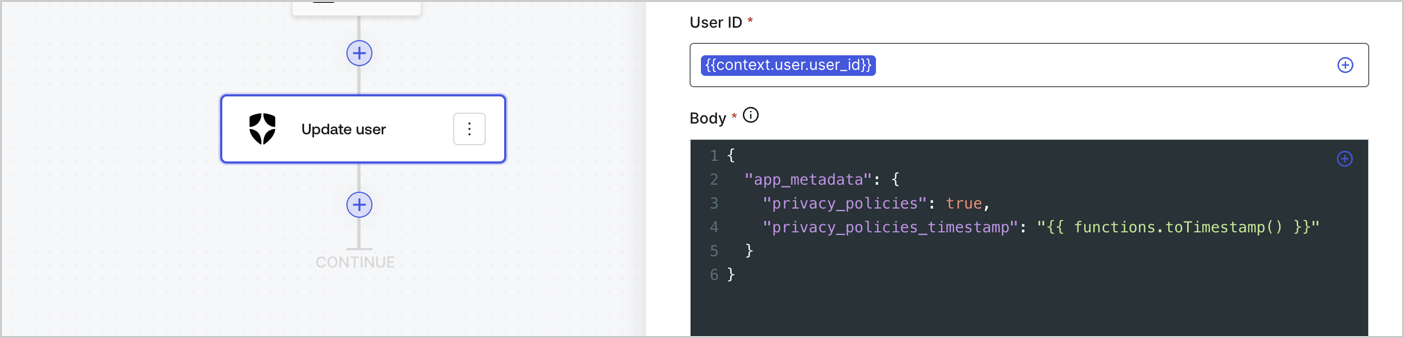
Ajoutez une action Auth0 **Update user** au flux en suivant les étapes ci-dessous :

1. Sélectionnez **Flow** **Update app\_metadata** > **Edit flow** pour ouvrir l’éditeur de flux dans un nouvel onglet.
2. Sous le StartAction, sélectionnez l’icône **+** pour ajouter une action **Update user**. Remplissez les champs ci-dessous, puis sélectionnez **Save** pour continuer.

   * **Connection** : Dans la liste déroulante, sélectionnez la connexion Vault de votre application M2M.

   * **User ID** : Entrez `{{context.user.user_id}}`.

   * **Body** : Copiez-collez le code suivant pour mettre à jour `app_metadata` avec les propriétés `privacy_policies` et `privacy_policies_timestamp`.

     ```text lines theme={null}
     {
       "app_metadata": {
         "privacy_policies": true,
         "privacy_policies_timestamp": "{{ functions.toTimestamp() }}"
       }
     }
     ```

   * Sélectionnez **Save**.
3. Sélectionnez **Publish** pour enregistrer.
<Frame>
  <img src="https://mintcdn.com/docs-staging-update-anonymous-sessons-ea/SBl_CGIQHPsUzKe5/docs/images/cdy7uua7fh8z/CvMNIwWrOUwaFW4X3G28p/1fb70ae57a20749d9ffaaba8dc0b7e26/update-user-privacy.png?fit=max&auto=format&n=SBl_CGIQHPsUzKe5&q=85&s=2631acd49a3297fdd8ea775672bb91fb" alt="Dashboard > Actions > Forms > User case privacy policy code" data-og-width="1404" width="1404" data-og-height="338" height="338" data-path="docs/images/cdy7uua7fh8z/CvMNIwWrOUwaFW4X3G28p/1fb70ae57a20749d9ffaaba8dc0b7e26/update-user-privacy.png" data-optimize="true" data-opv="3" srcset="https://mintcdn.com/docs-staging-update-anonymous-sessons-ea/SBl_CGIQHPsUzKe5/docs/images/cdy7uua7fh8z/CvMNIwWrOUwaFW4X3G28p/1fb70ae57a20749d9ffaaba8dc0b7e26/update-user-privacy.png?w=280&fit=max&auto=format&n=SBl_CGIQHPsUzKe5&q=85&s=389c5257c5486d81fa197c1cad05e4a9 280w, https://mintcdn.com/docs-staging-update-anonymous-sessons-ea/SBl_CGIQHPsUzKe5/docs/images/cdy7uua7fh8z/CvMNIwWrOUwaFW4X3G28p/1fb70ae57a20749d9ffaaba8dc0b7e26/update-user-privacy.png?w=560&fit=max&auto=format&n=SBl_CGIQHPsUzKe5&q=85&s=4da15cc8012b02090864043018dbc9ec 560w, https://mintcdn.com/docs-staging-update-anonymous-sessons-ea/SBl_CGIQHPsUzKe5/docs/images/cdy7uua7fh8z/CvMNIwWrOUwaFW4X3G28p/1fb70ae57a20749d9ffaaba8dc0b7e26/update-user-privacy.png?w=840&fit=max&auto=format&n=SBl_CGIQHPsUzKe5&q=85&s=23bdfcd150c1e5197fc7dbbdc7ed32a7 840w, https://mintcdn.com/docs-staging-update-anonymous-sessons-ea/SBl_CGIQHPsUzKe5/docs/images/cdy7uua7fh8z/CvMNIwWrOUwaFW4X3G28p/1fb70ae57a20749d9ffaaba8dc0b7e26/update-user-privacy.png?w=1100&fit=max&auto=format&n=SBl_CGIQHPsUzKe5&q=85&s=3eb094ebc24db51bffe45d943d099169 1100w, https://mintcdn.com/docs-staging-update-anonymous-sessons-ea/SBl_CGIQHPsUzKe5/docs/images/cdy7uua7fh8z/CvMNIwWrOUwaFW4X3G28p/1fb70ae57a20749d9ffaaba8dc0b7e26/update-user-privacy.png?w=1650&fit=max&auto=format&n=SBl_CGIQHPsUzKe5&q=85&s=248af805d2fe08b302c08c1104122d83 1650w, https://mintcdn.com/docs-staging-update-anonymous-sessons-ea/SBl_CGIQHPsUzKe5/docs/images/cdy7uua7fh8z/CvMNIwWrOUwaFW4X3G28p/1fb70ae57a20749d9ffaaba8dc0b7e26/update-user-privacy.png?w=2500&fit=max&auto=format&n=SBl_CGIQHPsUzKe5&q=85&s=699546db5588e66f71e7ad4d101e40b1 2500w" />
</Frame>

<Callout icon="file-lines" color="#0EA5E9" iconType="regular">
  Le flux **Update app\_metadata** ajoute la valeur `privacy_policies true` à l’objet `app_metadata` et génère aussi un horodatage à l’aide d’une [fonction utilitaire.](/docs/fr-ca/customize/forms/variables)
</Callout>

<h2 id="retrieve-the-form-render-code">
  Récupérer le code de rendu du formulaire
</h2>

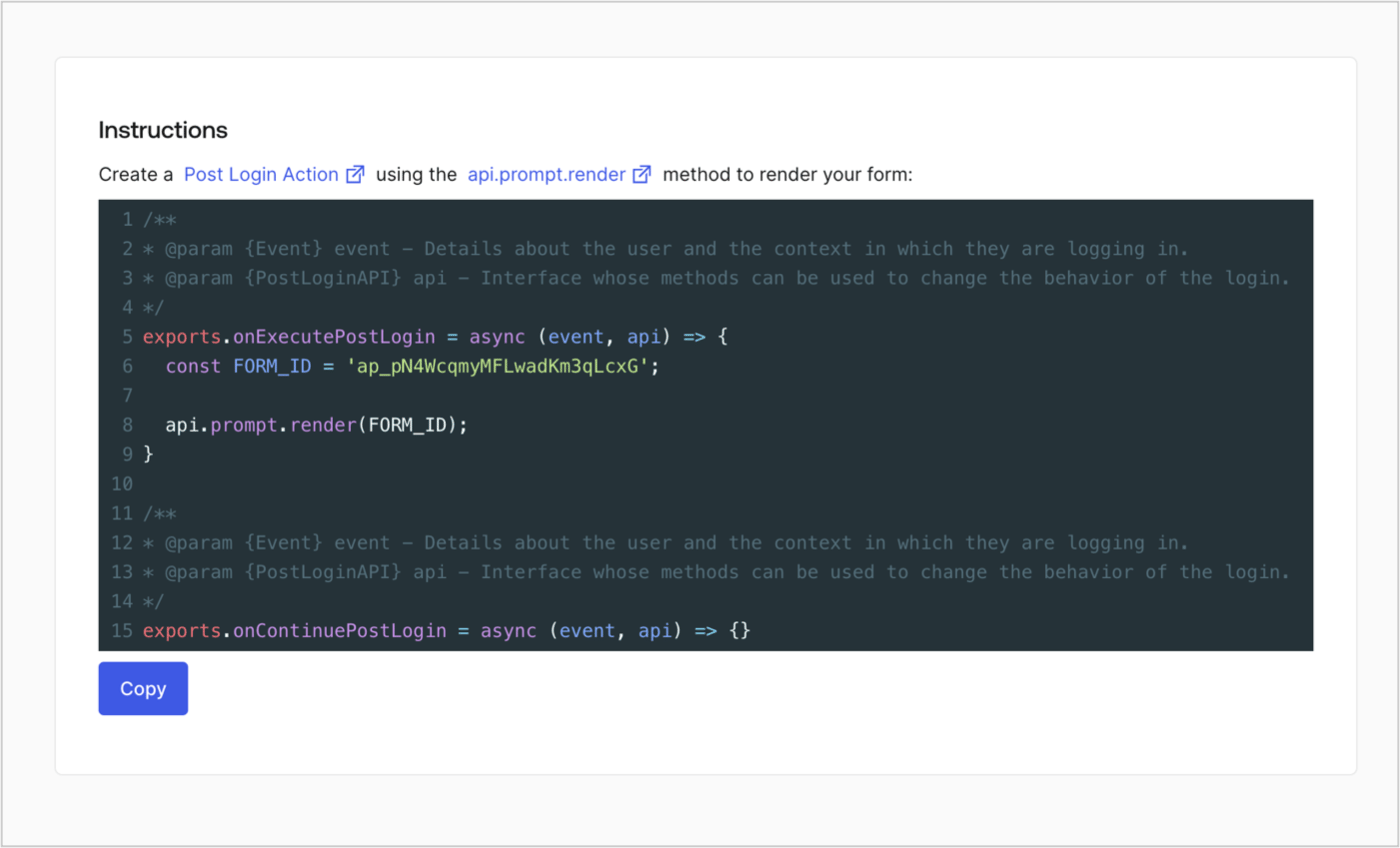
Récupérez le code de rendu de votre formulaire afin d’afficher le formulaire au moyen d’une Action Post Login personnalisée en suivant ces étapes :

* Dans l’éditeur de formulaires, sélectionnez **`<> Render`**.
* Sélectionnez **Copy**.
<Frame>
  <img src="https://mintcdn.com/docs-staging-update-anonymous-sessons-ea/D0Y-PVVz1ukwMxCO/docs/images/cdy7uua7fh8z/2EIUzc539sq9lwoTKbjoJv/496a864c0fc44a782c9cadca119dbfb0/embed.png?fit=max&auto=format&n=D0Y-PVVz1ukwMxCO&q=85&s=dc4439316a9b59920f47910d0a0776ca" alt="Dashboard > Actions > Forms > Form > Embed" data-og-width="1400" width="1400" data-og-height="848" height="848" data-path="docs/images/cdy7uua7fh8z/2EIUzc539sq9lwoTKbjoJv/496a864c0fc44a782c9cadca119dbfb0/embed.png" data-optimize="true" data-opv="3" srcset="https://mintcdn.com/docs-staging-update-anonymous-sessons-ea/D0Y-PVVz1ukwMxCO/docs/images/cdy7uua7fh8z/2EIUzc539sq9lwoTKbjoJv/496a864c0fc44a782c9cadca119dbfb0/embed.png?w=280&fit=max&auto=format&n=D0Y-PVVz1ukwMxCO&q=85&s=7f02b7a83cbb526d8049a2ed1c94d600 280w, https://mintcdn.com/docs-staging-update-anonymous-sessons-ea/D0Y-PVVz1ukwMxCO/docs/images/cdy7uua7fh8z/2EIUzc539sq9lwoTKbjoJv/496a864c0fc44a782c9cadca119dbfb0/embed.png?w=560&fit=max&auto=format&n=D0Y-PVVz1ukwMxCO&q=85&s=1586a1c8c751b17ca9f13b5a38085d65 560w, https://mintcdn.com/docs-staging-update-anonymous-sessons-ea/D0Y-PVVz1ukwMxCO/docs/images/cdy7uua7fh8z/2EIUzc539sq9lwoTKbjoJv/496a864c0fc44a782c9cadca119dbfb0/embed.png?w=840&fit=max&auto=format&n=D0Y-PVVz1ukwMxCO&q=85&s=b23bd2140061eabe1c474c50e5de5d3f 840w, https://mintcdn.com/docs-staging-update-anonymous-sessons-ea/D0Y-PVVz1ukwMxCO/docs/images/cdy7uua7fh8z/2EIUzc539sq9lwoTKbjoJv/496a864c0fc44a782c9cadca119dbfb0/embed.png?w=1100&fit=max&auto=format&n=D0Y-PVVz1ukwMxCO&q=85&s=24426c6c9f92047b73ef773a6826e458 1100w, https://mintcdn.com/docs-staging-update-anonymous-sessons-ea/D0Y-PVVz1ukwMxCO/docs/images/cdy7uua7fh8z/2EIUzc539sq9lwoTKbjoJv/496a864c0fc44a782c9cadca119dbfb0/embed.png?w=1650&fit=max&auto=format&n=D0Y-PVVz1ukwMxCO&q=85&s=caa636b6944bd05d26c31bda12c7516c 1650w, https://mintcdn.com/docs-staging-update-anonymous-sessons-ea/D0Y-PVVz1ukwMxCO/docs/images/cdy7uua7fh8z/2EIUzc539sq9lwoTKbjoJv/496a864c0fc44a782c9cadca119dbfb0/embed.png?w=2500&fit=max&auto=format&n=D0Y-PVVz1ukwMxCO&q=85&s=98566ddca1a537d837b9c9072b5890e4 2500w" />
</Frame>

<h2 id="create-a-post-login-action">
  Créer une Action Post Login
</h2>

Créez une action post-login pour afficher votre formulaire en suivant les étapes ci-dessous :

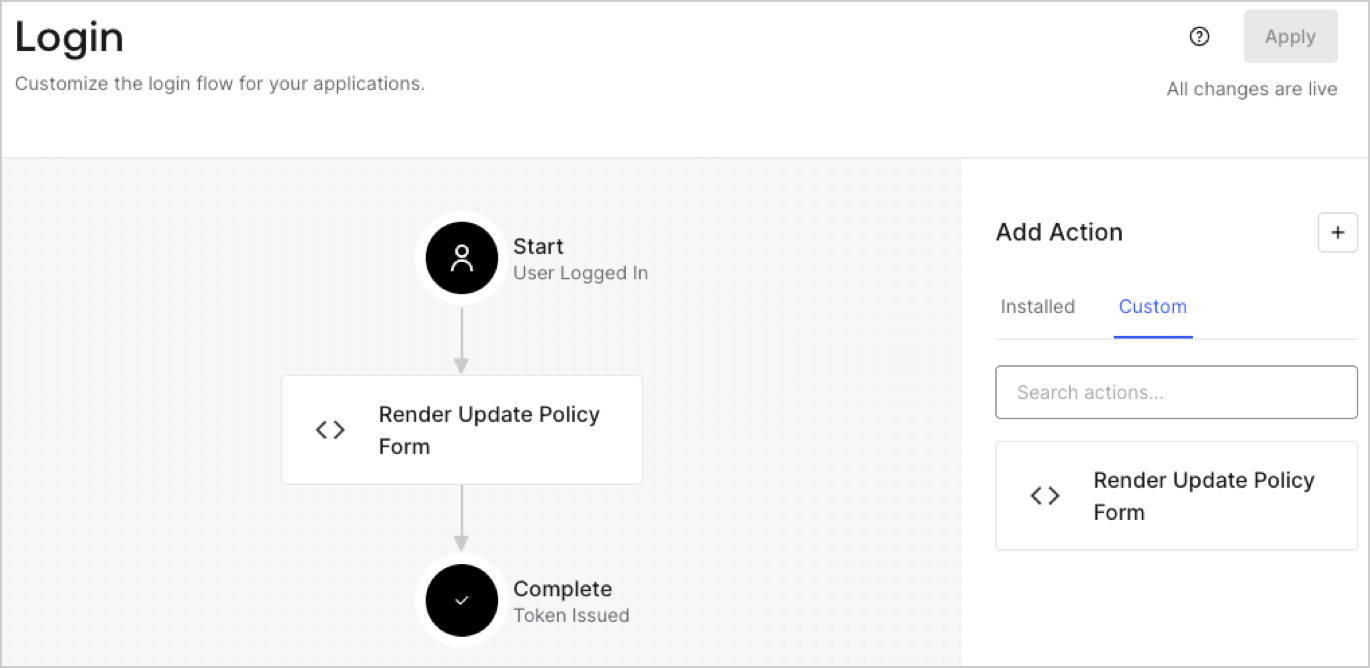
1. Accédez à **Auth0 Dashboard > Actions > Flows > Login.**
2. Sélectionnez l’icône **+**, puis **Build from scratch** :

   * **Nom** : Entrez `Render Update Policy Form`.
   * **Déclencheur** : Sélectionnez `Login / Post Login`.
   * **Runtime** : Sélectionnez la version recommandée.
3. Sélectionnez **Créer**.

Pour configurer l’action post-login :

1. Supprimez le code existant dans l’éditeur de code.
2. Collez le code de rendu du formulaire dans l’éditeur de code.
3. Modifiez le code pour définir la logique conditionnelle qui affichera le formulaire.

   ```javascript lines theme={null}
   /**
   * @param {Event} event - Détails sur l’utilisateur et le contexte dans lequel il se connecte.
   * @param {PostLoginAPI} api - Interface dont les méthodes peuvent être utilisées pour modifier le comportement de la connexion.
   */
   exports.onExecutePostLogin = async (event, api) => {
     const FORM_ID = 'REPLACE_WITH_YOUR_FORM_ID';

     if (event.user.app_metadata.privacy_policies !== true) {
       api.prompt.render(FORM_ID);
     }
   }

   exports.onContinuePostLogin = async (event, api) => { }
   ```

   <Callout icon="file-lines" color="#0EA5E9" iconType="regular">
     L’exemple de code ci-dessus affichera le formulaire si la propriété `privacy_policies` est absente de l’objet app metadata de l’utilisateur.
   </Callout>
4. Sélectionnez **Déployer**.
5. Glissez-déposez l’Action **Render Update Policy Form** dans le flux de **Login**.
   <Frame>
     <img src="https://mintcdn.com/docs-staging-update-anonymous-sessons-ea/UZwMKkhNpeWp2SPw/docs/images/cdy7uua7fh8z/5TOwDgevZsBqd7yZynUYWU/41ca909dc3007aed4f40ff794a05efa5/postlogin.png?fit=max&auto=format&n=UZwMKkhNpeWp2SPw&q=85&s=c1d2c730a74feaefd4ba9510a9d82b82" alt="Dashboard > Forms > cas d’utilisation > action de connexion pour afficher le formulaire de mise à jour de la politique" data-og-width="1370" width="1370" data-og-height="668" height="668" data-path="docs/images/cdy7uua7fh8z/5TOwDgevZsBqd7yZynUYWU/41ca909dc3007aed4f40ff794a05efa5/postlogin.png" data-optimize="true" data-opv="3" srcset="https://mintcdn.com/docs-staging-update-anonymous-sessons-ea/UZwMKkhNpeWp2SPw/docs/images/cdy7uua7fh8z/5TOwDgevZsBqd7yZynUYWU/41ca909dc3007aed4f40ff794a05efa5/postlogin.png?w=280&fit=max&auto=format&n=UZwMKkhNpeWp2SPw&q=85&s=2ef383c909d629a531852fa0a271f525 280w, https://mintcdn.com/docs-staging-update-anonymous-sessons-ea/UZwMKkhNpeWp2SPw/docs/images/cdy7uua7fh8z/5TOwDgevZsBqd7yZynUYWU/41ca909dc3007aed4f40ff794a05efa5/postlogin.png?w=560&fit=max&auto=format&n=UZwMKkhNpeWp2SPw&q=85&s=d128383ec9f6f5f0a87ec7b9940ec245 560w, https://mintcdn.com/docs-staging-update-anonymous-sessons-ea/UZwMKkhNpeWp2SPw/docs/images/cdy7uua7fh8z/5TOwDgevZsBqd7yZynUYWU/41ca909dc3007aed4f40ff794a05efa5/postlogin.png?w=840&fit=max&auto=format&n=UZwMKkhNpeWp2SPw&q=85&s=d17f0918a4af869da9800fa49f8f146d 840w, https://mintcdn.com/docs-staging-update-anonymous-sessons-ea/UZwMKkhNpeWp2SPw/docs/images/cdy7uua7fh8z/5TOwDgevZsBqd7yZynUYWU/41ca909dc3007aed4f40ff794a05efa5/postlogin.png?w=1100&fit=max&auto=format&n=UZwMKkhNpeWp2SPw&q=85&s=be85fb3c81820274fa5052244e70b8dc 1100w, https://mintcdn.com/docs-staging-update-anonymous-sessons-ea/UZwMKkhNpeWp2SPw/docs/images/cdy7uua7fh8z/5TOwDgevZsBqd7yZynUYWU/41ca909dc3007aed4f40ff794a05efa5/postlogin.png?w=1650&fit=max&auto=format&n=UZwMKkhNpeWp2SPw&q=85&s=007a9ff6779c13fa812654d96baae57e 1650w, https://mintcdn.com/docs-staging-update-anonymous-sessons-ea/UZwMKkhNpeWp2SPw/docs/images/cdy7uua7fh8z/5TOwDgevZsBqd7yZynUYWU/41ca909dc3007aed4f40ff794a05efa5/postlogin.png?w=2500&fit=max&auto=format&n=UZwMKkhNpeWp2SPw&q=85&s=1ffcb832d9923f6f686e90ec9f5be87c 2500w" />
   </Frame>
6. Sélectionnez **Appliquer**.

<h3 id="test-implementation">
  Test de la mise en œuvre
</h3>

Testez la mise en œuvre en suivant ces étapes :

1. Connectez-vous avec un utilisateur existant dont l’attribut app`_metadata` `privacy_policies` n’a aucune valeur.
2. L’Action post-login dans le flux de Login affichera le formulaire et demandera l’acceptation.
3. Sélectionnez **Auth0 Dashboard > User Management > Users,** repérez l’utilisateur et vérifiez que l’attribut `app_metadata` `privacy_policies` contient la valeur `true` ainsi qu’un horodatage.
