> ## Documentation Index
> Fetch the complete documentation index at: https://docs-staging-update-anonymous-sessons-ea.mintlify.site/llms.txt
> Use this file to discover all available pages before exploring further.

> Learn how to configure a progressive profile form using Forms for Actions

# Use Cases: Configure a progressive profile form using Forms

<Card title="Before you start">
  1. Create a [Machine-to-Machine Application](/docs/get-started/auth0-overview/create-applications/machine-to-machine-apps) with the following scopes enabled:

  * `read:users`
  * `update:users`
  * `create:users`
  * `read:users_app_metadata`
  * `update:users_app_metadata`
  * `create:users_app_metadata`

  2. Add a [Vault connection](/docs/customize/forms/vault) using the M2M application credentials.
</Card>

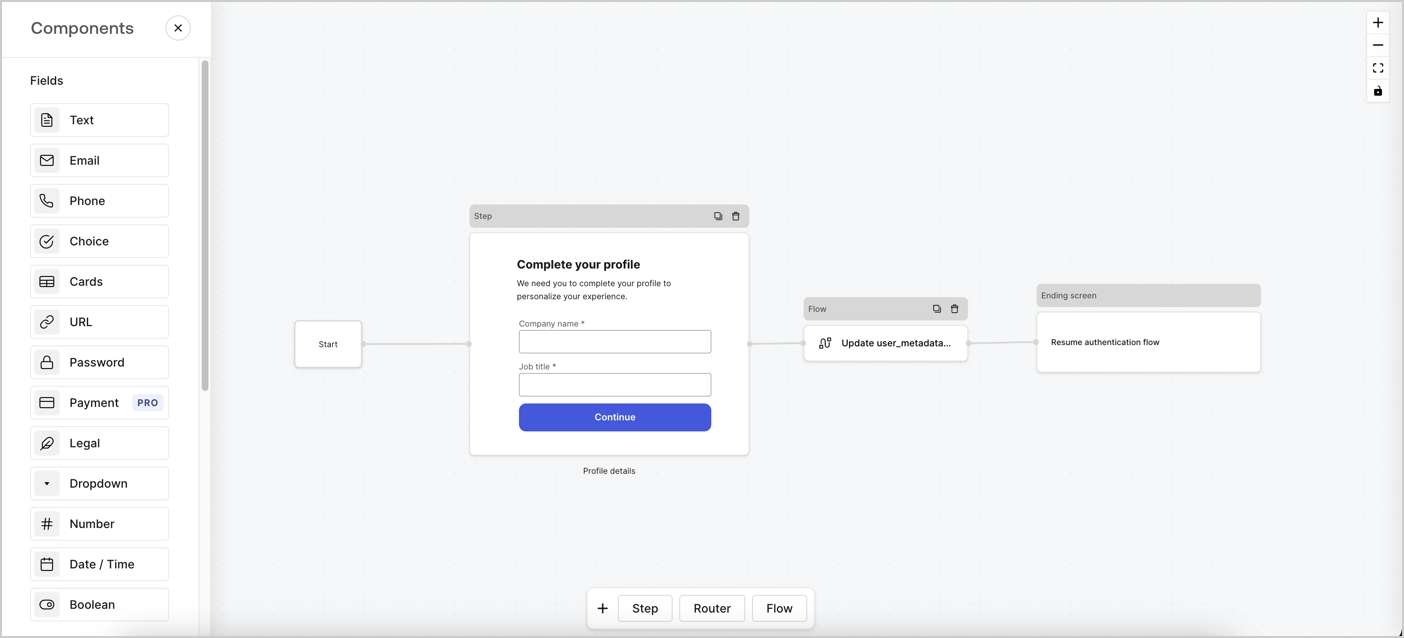
Forms for Actions allows you to create progressive profiling flows to decide when to prompt users to collect missing information, such as company name and job title, and store them as `user_metadata` attributes.
<Frame>
  <img src="https://mintcdn.com/docs-staging-update-anonymous-sessons-ea/aicfNob5mXwd0ttg/docs/images/cdy7uua7fh8z/xUx9YmnHvnAqL19JvNtNP/60dae88f893d4ebe8e3523421e960596/Progressive-profle-overview.png?fit=max&auto=format&n=aicfNob5mXwd0ttg&q=85&s=a67e6517286cdf079acc6e48d308613b" alt="Dashboard > Actions > Forms > Form" data-og-width="1404" width="1404" data-og-height="638" height="638" data-path="docs/images/cdy7uua7fh8z/xUx9YmnHvnAqL19JvNtNP/60dae88f893d4ebe8e3523421e960596/Progressive-profle-overview.png" data-optimize="true" data-opv="3" srcset="https://mintcdn.com/docs-staging-update-anonymous-sessons-ea/aicfNob5mXwd0ttg/docs/images/cdy7uua7fh8z/xUx9YmnHvnAqL19JvNtNP/60dae88f893d4ebe8e3523421e960596/Progressive-profle-overview.png?w=280&fit=max&auto=format&n=aicfNob5mXwd0ttg&q=85&s=e87ca970bf44362ed94b1dd03f79e919 280w, https://mintcdn.com/docs-staging-update-anonymous-sessons-ea/aicfNob5mXwd0ttg/docs/images/cdy7uua7fh8z/xUx9YmnHvnAqL19JvNtNP/60dae88f893d4ebe8e3523421e960596/Progressive-profle-overview.png?w=560&fit=max&auto=format&n=aicfNob5mXwd0ttg&q=85&s=d5e8c8f92662cf873c471de01f6e17f7 560w, https://mintcdn.com/docs-staging-update-anonymous-sessons-ea/aicfNob5mXwd0ttg/docs/images/cdy7uua7fh8z/xUx9YmnHvnAqL19JvNtNP/60dae88f893d4ebe8e3523421e960596/Progressive-profle-overview.png?w=840&fit=max&auto=format&n=aicfNob5mXwd0ttg&q=85&s=03b638e4fff58b0701602d9c91e89835 840w, https://mintcdn.com/docs-staging-update-anonymous-sessons-ea/aicfNob5mXwd0ttg/docs/images/cdy7uua7fh8z/xUx9YmnHvnAqL19JvNtNP/60dae88f893d4ebe8e3523421e960596/Progressive-profle-overview.png?w=1100&fit=max&auto=format&n=aicfNob5mXwd0ttg&q=85&s=739a7b49f4b035e65609ef92c779a4b2 1100w, https://mintcdn.com/docs-staging-update-anonymous-sessons-ea/aicfNob5mXwd0ttg/docs/images/cdy7uua7fh8z/xUx9YmnHvnAqL19JvNtNP/60dae88f893d4ebe8e3523421e960596/Progressive-profle-overview.png?w=1650&fit=max&auto=format&n=aicfNob5mXwd0ttg&q=85&s=1f949d1ebb6f7919c00ae4c208148ed4 1650w, https://mintcdn.com/docs-staging-update-anonymous-sessons-ea/aicfNob5mXwd0ttg/docs/images/cdy7uua7fh8z/xUx9YmnHvnAqL19JvNtNP/60dae88f893d4ebe8e3523421e960596/Progressive-profle-overview.png?w=2500&fit=max&auto=format&n=aicfNob5mXwd0ttg&q=85&s=17da280c23defc1d194cb5b19c1f8250 2500w" />
</Frame>

The sections below outline how you can create a progressive profile form using nodes and flows, along with steps for adding your form to a [Post Login Action](/docs/customize/actions/explore-triggers/signup-and-login-triggers/login-trigger).

## Create a form from scratch

Follow these steps to create a form to gather information:

1. Open the Form editor by selecting **Auth0 Dashboard > Actions > Forms.**
2. Select **Create Form** > **Start from scratch**.

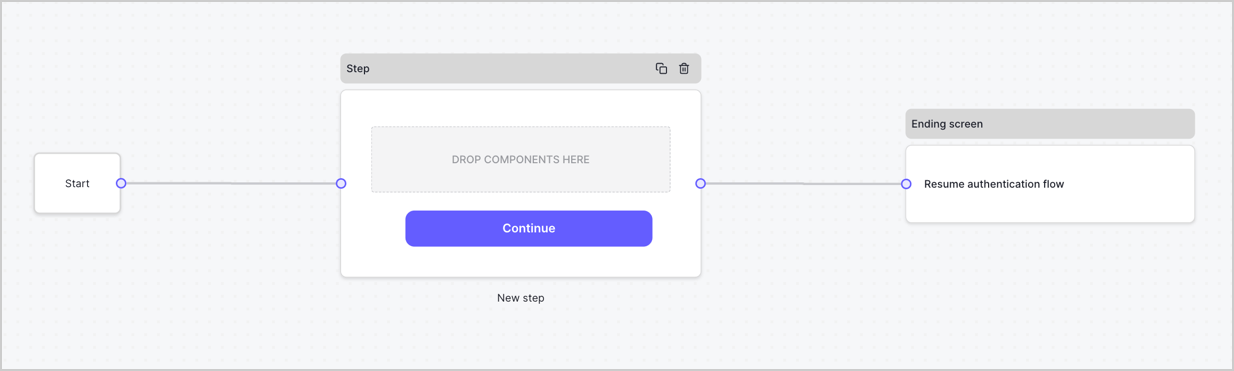
By default, a new form contains a Start node, a Step node, and an Ending screen node.
<Frame>
  <img src="https://mintcdn.com/docs-staging-update-anonymous-sessons-ea/D0Y-PVVz1ukwMxCO/docs/images/cdy7uua7fh8z/2TZ9jSjgEcARFpULI6hz4R/a4319a1bd482f2ee5cc23100fdb2f42c/New-form-Forms-for-action-use-case.png?fit=max&auto=format&n=D0Y-PVVz1ukwMxCO&q=85&s=adaf1ed2aeebd7c5235777ee92cd8e38" alt="Dashboard > Forms > Use Cases > Form" data-og-width="1234" width="1234" data-og-height="371" height="371" data-path="docs/images/cdy7uua7fh8z/2TZ9jSjgEcARFpULI6hz4R/a4319a1bd482f2ee5cc23100fdb2f42c/New-form-Forms-for-action-use-case.png" data-optimize="true" data-opv="3" srcset="https://mintcdn.com/docs-staging-update-anonymous-sessons-ea/D0Y-PVVz1ukwMxCO/docs/images/cdy7uua7fh8z/2TZ9jSjgEcARFpULI6hz4R/a4319a1bd482f2ee5cc23100fdb2f42c/New-form-Forms-for-action-use-case.png?w=280&fit=max&auto=format&n=D0Y-PVVz1ukwMxCO&q=85&s=6c5dcb02d160fa65a781463cee30e583 280w, https://mintcdn.com/docs-staging-update-anonymous-sessons-ea/D0Y-PVVz1ukwMxCO/docs/images/cdy7uua7fh8z/2TZ9jSjgEcARFpULI6hz4R/a4319a1bd482f2ee5cc23100fdb2f42c/New-form-Forms-for-action-use-case.png?w=560&fit=max&auto=format&n=D0Y-PVVz1ukwMxCO&q=85&s=f9c725a2b779005a2e7cd551630a537a 560w, https://mintcdn.com/docs-staging-update-anonymous-sessons-ea/D0Y-PVVz1ukwMxCO/docs/images/cdy7uua7fh8z/2TZ9jSjgEcARFpULI6hz4R/a4319a1bd482f2ee5cc23100fdb2f42c/New-form-Forms-for-action-use-case.png?w=840&fit=max&auto=format&n=D0Y-PVVz1ukwMxCO&q=85&s=3e96c6fb1bc1679bf71ef8b6dbf47305 840w, https://mintcdn.com/docs-staging-update-anonymous-sessons-ea/D0Y-PVVz1ukwMxCO/docs/images/cdy7uua7fh8z/2TZ9jSjgEcARFpULI6hz4R/a4319a1bd482f2ee5cc23100fdb2f42c/New-form-Forms-for-action-use-case.png?w=1100&fit=max&auto=format&n=D0Y-PVVz1ukwMxCO&q=85&s=50072ecb41d11bfefdadaf304ddc0504 1100w, https://mintcdn.com/docs-staging-update-anonymous-sessons-ea/D0Y-PVVz1ukwMxCO/docs/images/cdy7uua7fh8z/2TZ9jSjgEcARFpULI6hz4R/a4319a1bd482f2ee5cc23100fdb2f42c/New-form-Forms-for-action-use-case.png?w=1650&fit=max&auto=format&n=D0Y-PVVz1ukwMxCO&q=85&s=a154e2407ab59411335fa8463cc1c209 1650w, https://mintcdn.com/docs-staging-update-anonymous-sessons-ea/D0Y-PVVz1ukwMxCO/docs/images/cdy7uua7fh8z/2TZ9jSjgEcARFpULI6hz4R/a4319a1bd482f2ee5cc23100fdb2f42c/New-form-Forms-for-action-use-case.png?w=2500&fit=max&auto=format&n=D0Y-PVVz1ukwMxCO&q=85&s=208f158e497ff2182ef4a03fdb40242b 2500w" />
</Frame>

### Configure the Step node

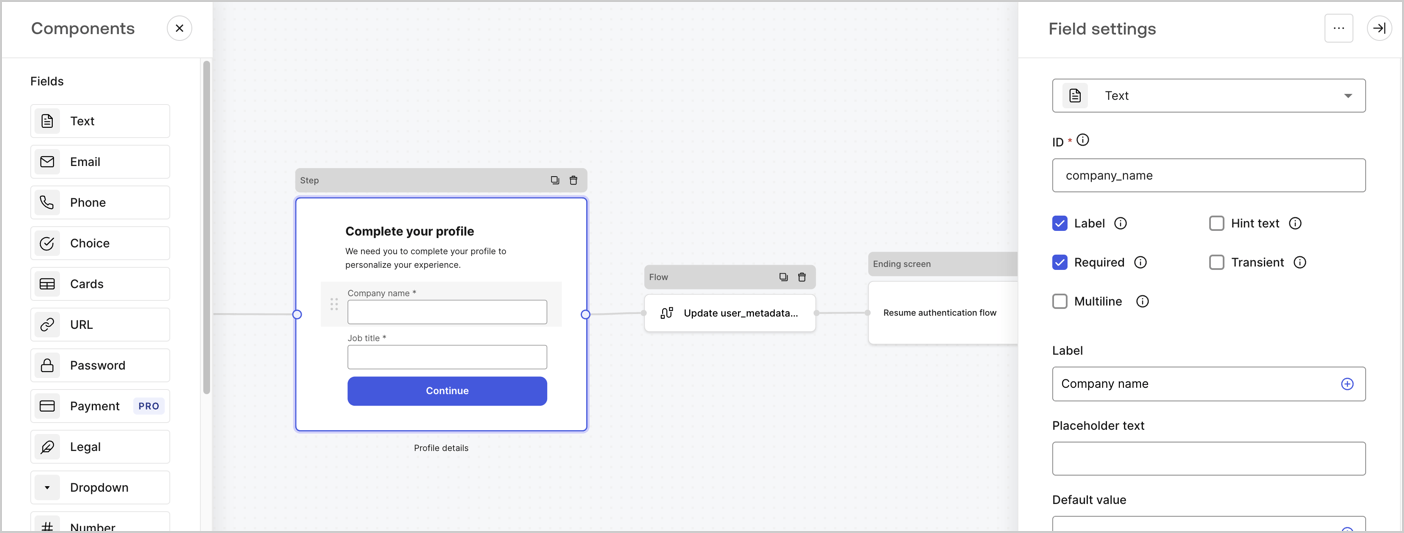
The Step node is the graphical interface visible to users. Add [Fields](/docs/customize/forms/nodes-and-components) to the Step node to collect the user's company name and job title values by following these steps:

1. Drag a **Rich text** field from the **Components menu** into the **Step** node.

   * **Rich text**: Enter a custom message.

     * **Example**: `Complete your profile! We need you to complete your profile to personalize your experience.`
   * Select **Save**.
2. Drag a **Text** field into the **Step** node.

   * **ID**: Enter `company_name`.
   * **Label**: Enable the checkbox.
   * **Label**: Enter `Company name`.
   * **Required**: Enable the checkbox.
   * Select **Save**.
3. Drag a **Text** field into the **Step** node.

   1. **ID**: Enter `job_title`.
   2. **Label**: Enter `Job title`.
   3. **Label**: Enable the checkbox.
   4. **Required**: Enable the checkbox.
   5. Select **Save**.
4. Select **Publish** to save.
<Frame>
  <img src="https://mintcdn.com/docs-staging-update-anonymous-sessons-ea/PNS305OgYH0rOlt7/docs/images/cdy7uua7fh8z/6H1lRzwKyYioQyQJ9MtIoM/aa248e92fc028a68a5b92ff361a11644/progressive-profile-step.png?fit=max&auto=format&n=PNS305OgYH0rOlt7&q=85&s=41896a132b12b5e25788dddbf56432c8" alt="Dashboard > Actions > Forms > Form > Step node" data-og-width="1404" width="1404" data-og-height="533" height="533" data-path="docs/images/cdy7uua7fh8z/6H1lRzwKyYioQyQJ9MtIoM/aa248e92fc028a68a5b92ff361a11644/progressive-profile-step.png" data-optimize="true" data-opv="3" srcset="https://mintcdn.com/docs-staging-update-anonymous-sessons-ea/PNS305OgYH0rOlt7/docs/images/cdy7uua7fh8z/6H1lRzwKyYioQyQJ9MtIoM/aa248e92fc028a68a5b92ff361a11644/progressive-profile-step.png?w=280&fit=max&auto=format&n=PNS305OgYH0rOlt7&q=85&s=b46fcfd4e4a0dbed33fbe7c7a0dda6f5 280w, https://mintcdn.com/docs-staging-update-anonymous-sessons-ea/PNS305OgYH0rOlt7/docs/images/cdy7uua7fh8z/6H1lRzwKyYioQyQJ9MtIoM/aa248e92fc028a68a5b92ff361a11644/progressive-profile-step.png?w=560&fit=max&auto=format&n=PNS305OgYH0rOlt7&q=85&s=7a61c8f310780a42f5b73dddd293929e 560w, https://mintcdn.com/docs-staging-update-anonymous-sessons-ea/PNS305OgYH0rOlt7/docs/images/cdy7uua7fh8z/6H1lRzwKyYioQyQJ9MtIoM/aa248e92fc028a68a5b92ff361a11644/progressive-profile-step.png?w=840&fit=max&auto=format&n=PNS305OgYH0rOlt7&q=85&s=fbea3783e8de0db8bada71a83b46d892 840w, https://mintcdn.com/docs-staging-update-anonymous-sessons-ea/PNS305OgYH0rOlt7/docs/images/cdy7uua7fh8z/6H1lRzwKyYioQyQJ9MtIoM/aa248e92fc028a68a5b92ff361a11644/progressive-profile-step.png?w=1100&fit=max&auto=format&n=PNS305OgYH0rOlt7&q=85&s=eb22d1fb368d945321c9945c7f6a51c7 1100w, https://mintcdn.com/docs-staging-update-anonymous-sessons-ea/PNS305OgYH0rOlt7/docs/images/cdy7uua7fh8z/6H1lRzwKyYioQyQJ9MtIoM/aa248e92fc028a68a5b92ff361a11644/progressive-profile-step.png?w=1650&fit=max&auto=format&n=PNS305OgYH0rOlt7&q=85&s=7f9a0fbb7faec8690da2d8b9fd344e68 1650w, https://mintcdn.com/docs-staging-update-anonymous-sessons-ea/PNS305OgYH0rOlt7/docs/images/cdy7uua7fh8z/6H1lRzwKyYioQyQJ9MtIoM/aa248e92fc028a68a5b92ff361a11644/progressive-profile-step.png?w=2500&fit=max&auto=format&n=PNS305OgYH0rOlt7&q=85&s=87ed4533ca9ee0ba462e384ab63f21d8 2500w" />
</Frame>

### Configure the flow node

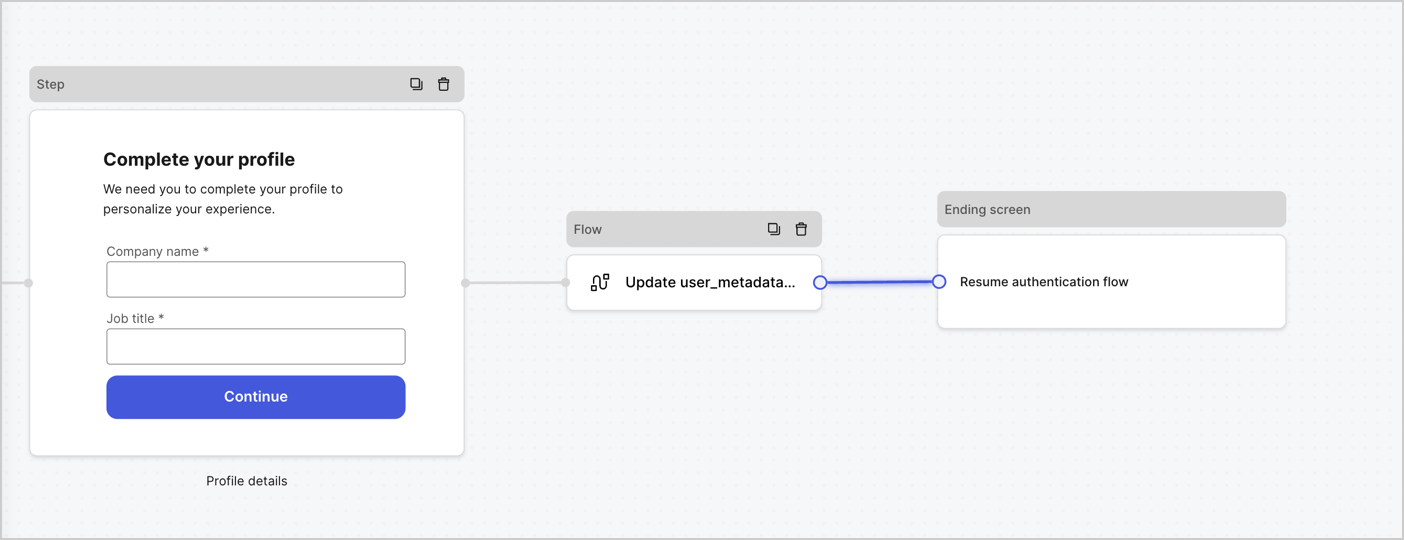
Add a **Flow** node after the **Step** node to update the `user_metadata` and resume the authentication flow by following these steps:

1. Select **Flow** from the bottom of the Form editor.
2. Remove the existing link between the **Step** and **Ending Screen** nodes.
3. Select the new **Flow** > **Click to add a flow** > **Create a new flow.**

   * Enter `Update user_metadata` in the **Name** field.
   * Select **Create**.
   * Select **Save**.
4. Link the **Flow** node to the **Step** and **Ending Screen** nodes as pictured below.
5. Select **Publish** to save.
<Frame>
  <img src="https://mintcdn.com/docs-staging-update-anonymous-sessons-ea/UZwMKkhNpeWp2SPw/docs/images/cdy7uua7fh8z/5C91DaWn4LGtJT9BF87ssu/095171d0c452a287c44bfde12fd6d13f/link-nodes.png?fit=max&auto=format&n=UZwMKkhNpeWp2SPw&q=85&s=7bb3f081b59904848f2a8a2bdc5be777" alt="Dashboard > Actions > Forms > Form" data-og-width="1404" width="1404" data-og-height="540" height="540" data-path="docs/images/cdy7uua7fh8z/5C91DaWn4LGtJT9BF87ssu/095171d0c452a287c44bfde12fd6d13f/link-nodes.png" data-optimize="true" data-opv="3" srcset="https://mintcdn.com/docs-staging-update-anonymous-sessons-ea/UZwMKkhNpeWp2SPw/docs/images/cdy7uua7fh8z/5C91DaWn4LGtJT9BF87ssu/095171d0c452a287c44bfde12fd6d13f/link-nodes.png?w=280&fit=max&auto=format&n=UZwMKkhNpeWp2SPw&q=85&s=e2bb0b2f8850fdbdb5178b2bbab71f3c 280w, https://mintcdn.com/docs-staging-update-anonymous-sessons-ea/UZwMKkhNpeWp2SPw/docs/images/cdy7uua7fh8z/5C91DaWn4LGtJT9BF87ssu/095171d0c452a287c44bfde12fd6d13f/link-nodes.png?w=560&fit=max&auto=format&n=UZwMKkhNpeWp2SPw&q=85&s=7288536459876464efad768cddfe8d2c 560w, https://mintcdn.com/docs-staging-update-anonymous-sessons-ea/UZwMKkhNpeWp2SPw/docs/images/cdy7uua7fh8z/5C91DaWn4LGtJT9BF87ssu/095171d0c452a287c44bfde12fd6d13f/link-nodes.png?w=840&fit=max&auto=format&n=UZwMKkhNpeWp2SPw&q=85&s=04f4f1ee96fdfd2bbfc80997de5372d7 840w, https://mintcdn.com/docs-staging-update-anonymous-sessons-ea/UZwMKkhNpeWp2SPw/docs/images/cdy7uua7fh8z/5C91DaWn4LGtJT9BF87ssu/095171d0c452a287c44bfde12fd6d13f/link-nodes.png?w=1100&fit=max&auto=format&n=UZwMKkhNpeWp2SPw&q=85&s=406762d530dede3ae10a9615544bbd68 1100w, https://mintcdn.com/docs-staging-update-anonymous-sessons-ea/UZwMKkhNpeWp2SPw/docs/images/cdy7uua7fh8z/5C91DaWn4LGtJT9BF87ssu/095171d0c452a287c44bfde12fd6d13f/link-nodes.png?w=1650&fit=max&auto=format&n=UZwMKkhNpeWp2SPw&q=85&s=f58a05b236bcfe56d4899eebe2c1de50 1650w, https://mintcdn.com/docs-staging-update-anonymous-sessons-ea/UZwMKkhNpeWp2SPw/docs/images/cdy7uua7fh8z/5C91DaWn4LGtJT9BF87ssu/095171d0c452a287c44bfde12fd6d13f/link-nodes.png?w=2500&fit=max&auto=format&n=UZwMKkhNpeWp2SPw&q=85&s=9cf0227f82b876da98d6efc7452b66f1 2500w" />
</Frame>

Add an Auth0 Update user action to the flow by following these steps:

1. Select the **Update user\_metadata** flow, then select the **Edit Flow** to open the Flow editor in a new tab.
2. Below the **Start** action, select the **+** icon to add an **Update user** action. Complete the fields below, then select **Save** to continue.

   * **Connection**: Select from the dropdown the Vault connection to your M2M application.

   * **User ID**: Enter `{{context.user.user_id}}`.

   * **Body**: Copy and paste the following code to update the user\_metadata with `job_title` and `company_name` properties.

     ```json lines theme={null}
     {
        "user_metadata": {
           "job_title": "{{fields.job_title}}",
           "company_name": "{{fields.company_name}}"
        }
     }
     ```

   * Select **Save**.
3. Select **Publish** to save.

<Frame>
  <img src="https://mintcdn.com/docs-staging-update-anonymous-sessons-ea/PNS305OgYH0rOlt7/docs/images/cdy7uua7fh8z/65Jx4W5oIZJyyvA8z4HqIx/0661b1a8ca6361c54fc4fef07ba59f0b/update-user.png?fit=max&auto=format&n=PNS305OgYH0rOlt7&q=85&s=6529c6808bc225db8835c300185eed17" alt="Dashboard > Actions > Forms > Flows" data-og-width="1404" width="1404" data-og-height="244" height="244" data-path="docs/images/cdy7uua7fh8z/65Jx4W5oIZJyyvA8z4HqIx/0661b1a8ca6361c54fc4fef07ba59f0b/update-user.png" data-optimize="true" data-opv="3" srcset="https://mintcdn.com/docs-staging-update-anonymous-sessons-ea/PNS305OgYH0rOlt7/docs/images/cdy7uua7fh8z/65Jx4W5oIZJyyvA8z4HqIx/0661b1a8ca6361c54fc4fef07ba59f0b/update-user.png?w=280&fit=max&auto=format&n=PNS305OgYH0rOlt7&q=85&s=95d1774a9a523b06774a16c87514b1ed 280w, https://mintcdn.com/docs-staging-update-anonymous-sessons-ea/PNS305OgYH0rOlt7/docs/images/cdy7uua7fh8z/65Jx4W5oIZJyyvA8z4HqIx/0661b1a8ca6361c54fc4fef07ba59f0b/update-user.png?w=560&fit=max&auto=format&n=PNS305OgYH0rOlt7&q=85&s=3f66bbe58db81d757ee026cb868e317f 560w, https://mintcdn.com/docs-staging-update-anonymous-sessons-ea/PNS305OgYH0rOlt7/docs/images/cdy7uua7fh8z/65Jx4W5oIZJyyvA8z4HqIx/0661b1a8ca6361c54fc4fef07ba59f0b/update-user.png?w=840&fit=max&auto=format&n=PNS305OgYH0rOlt7&q=85&s=9e2e530c91949630debfcd46de7c0586 840w, https://mintcdn.com/docs-staging-update-anonymous-sessons-ea/PNS305OgYH0rOlt7/docs/images/cdy7uua7fh8z/65Jx4W5oIZJyyvA8z4HqIx/0661b1a8ca6361c54fc4fef07ba59f0b/update-user.png?w=1100&fit=max&auto=format&n=PNS305OgYH0rOlt7&q=85&s=69824cd6de3fe4ad62a3d853b4a36b30 1100w, https://mintcdn.com/docs-staging-update-anonymous-sessons-ea/PNS305OgYH0rOlt7/docs/images/cdy7uua7fh8z/65Jx4W5oIZJyyvA8z4HqIx/0661b1a8ca6361c54fc4fef07ba59f0b/update-user.png?w=1650&fit=max&auto=format&n=PNS305OgYH0rOlt7&q=85&s=8076f6b93106afbf7e3156bf013d7826 1650w, https://mintcdn.com/docs-staging-update-anonymous-sessons-ea/PNS305OgYH0rOlt7/docs/images/cdy7uua7fh8z/65Jx4W5oIZJyyvA8z4HqIx/0661b1a8ca6361c54fc4fef07ba59f0b/update-user.png?w=2500&fit=max&auto=format&n=PNS305OgYH0rOlt7&q=85&s=1f6808180ce5e0ed87a24323dfddef73 2500w" />
</Frame>

### Retrieve the form render code

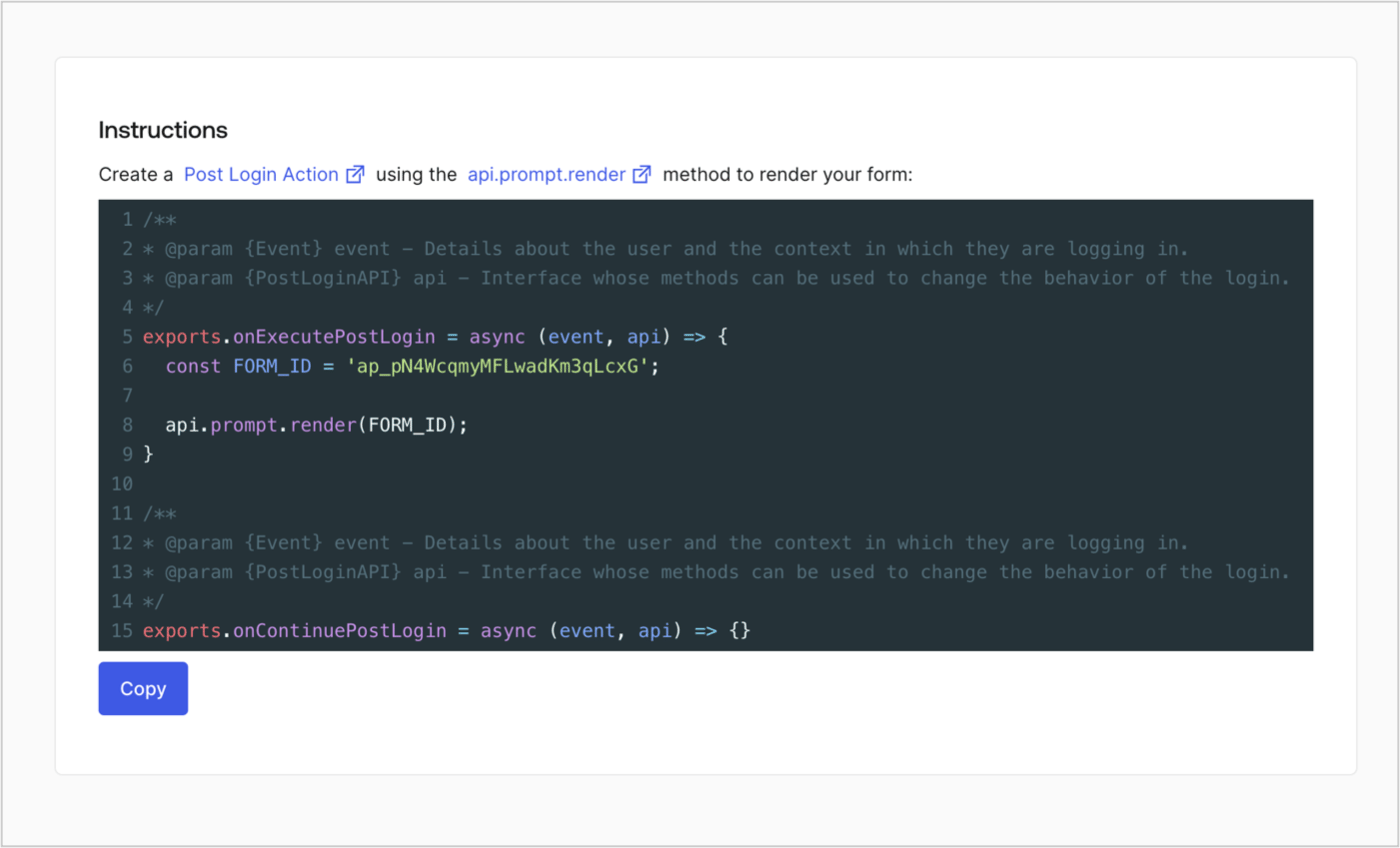
Retrieve the form render code to visually render the form with a custom Post Login Action by following these steps:

* From the Form editor, select **`<> Render`**.
* Select **Copy**.
<Frame>
  <img src="https://mintcdn.com/docs-staging-update-anonymous-sessons-ea/D0Y-PVVz1ukwMxCO/docs/images/cdy7uua7fh8z/2EIUzc539sq9lwoTKbjoJv/496a864c0fc44a782c9cadca119dbfb0/embed.png?fit=max&auto=format&n=D0Y-PVVz1ukwMxCO&q=85&s=dc4439316a9b59920f47910d0a0776ca" alt="Dashboard > Actions > Forms > Form > Embed" data-og-width="1400" width="1400" data-og-height="848" height="848" data-path="docs/images/cdy7uua7fh8z/2EIUzc539sq9lwoTKbjoJv/496a864c0fc44a782c9cadca119dbfb0/embed.png" data-optimize="true" data-opv="3" srcset="https://mintcdn.com/docs-staging-update-anonymous-sessons-ea/D0Y-PVVz1ukwMxCO/docs/images/cdy7uua7fh8z/2EIUzc539sq9lwoTKbjoJv/496a864c0fc44a782c9cadca119dbfb0/embed.png?w=280&fit=max&auto=format&n=D0Y-PVVz1ukwMxCO&q=85&s=7f02b7a83cbb526d8049a2ed1c94d600 280w, https://mintcdn.com/docs-staging-update-anonymous-sessons-ea/D0Y-PVVz1ukwMxCO/docs/images/cdy7uua7fh8z/2EIUzc539sq9lwoTKbjoJv/496a864c0fc44a782c9cadca119dbfb0/embed.png?w=560&fit=max&auto=format&n=D0Y-PVVz1ukwMxCO&q=85&s=1586a1c8c751b17ca9f13b5a38085d65 560w, https://mintcdn.com/docs-staging-update-anonymous-sessons-ea/D0Y-PVVz1ukwMxCO/docs/images/cdy7uua7fh8z/2EIUzc539sq9lwoTKbjoJv/496a864c0fc44a782c9cadca119dbfb0/embed.png?w=840&fit=max&auto=format&n=D0Y-PVVz1ukwMxCO&q=85&s=b23bd2140061eabe1c474c50e5de5d3f 840w, https://mintcdn.com/docs-staging-update-anonymous-sessons-ea/D0Y-PVVz1ukwMxCO/docs/images/cdy7uua7fh8z/2EIUzc539sq9lwoTKbjoJv/496a864c0fc44a782c9cadca119dbfb0/embed.png?w=1100&fit=max&auto=format&n=D0Y-PVVz1ukwMxCO&q=85&s=24426c6c9f92047b73ef773a6826e458 1100w, https://mintcdn.com/docs-staging-update-anonymous-sessons-ea/D0Y-PVVz1ukwMxCO/docs/images/cdy7uua7fh8z/2EIUzc539sq9lwoTKbjoJv/496a864c0fc44a782c9cadca119dbfb0/embed.png?w=1650&fit=max&auto=format&n=D0Y-PVVz1ukwMxCO&q=85&s=caa636b6944bd05d26c31bda12c7516c 1650w, https://mintcdn.com/docs-staging-update-anonymous-sessons-ea/D0Y-PVVz1ukwMxCO/docs/images/cdy7uua7fh8z/2EIUzc539sq9lwoTKbjoJv/496a864c0fc44a782c9cadca119dbfb0/embed.png?w=2500&fit=max&auto=format&n=D0Y-PVVz1ukwMxCO&q=85&s=98566ddca1a537d837b9c9072b5890e4 2500w" />
</Frame>

## Create a Post Login Action

Create a post-login Action to render your form by following these steps:

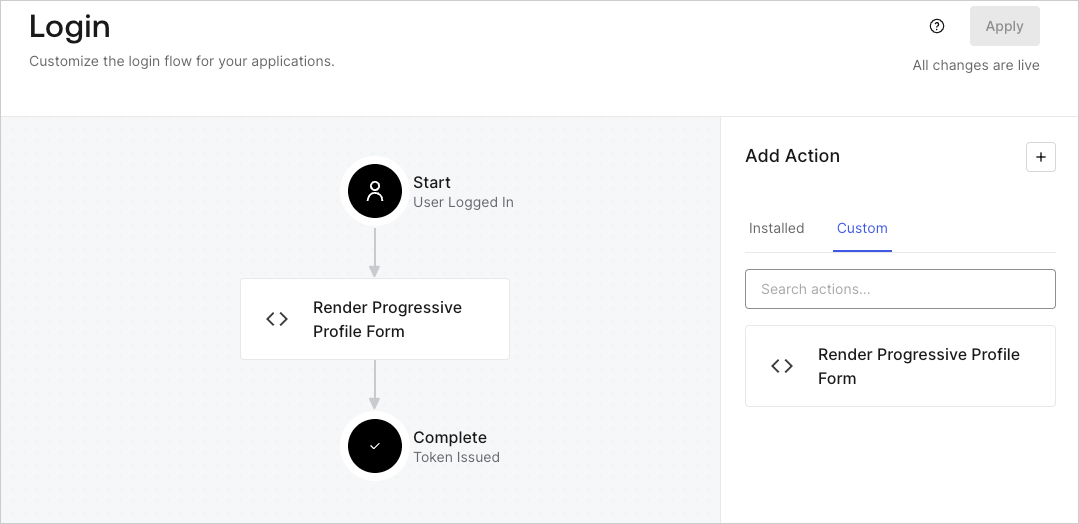
1. Navigate to **Auth0 Dashboard > Actions > Flows > Login.**
2. Select the **+** icon and select **Build from scratch**:

   * **Name**: Enter `Render Progressive Profile Form`.
   * **Trigger**: Select `Login / Post Login`.
   * **Runtime**: Select the recommended version.
3. Select **Create**.

To configure the post-login Action:

1. Delete the existing code from the Code editor.
2. Paste the form embed code into the Code editor.
3. Edit the code to define the conditional logic that will render the form.

   ```javascript lines theme={null}
   /**
   * @param {Event} event - Details about the user and the context in which they are logging in.
   * @param {PostLoginAPI} api - Interface whose methods can be used to change the behavior of the login.
   */
   exports.onExecutePostLogin = async (event, api) => {
     const FORM_ID = 'REPLACE_WITH_YOUR_FORM_ID';

     if (
       event.stats.logins_count > 2 &&
       !event.user.user_metadata.company_name &&
       !event.user.user_metadata.job_title
     ) {
       api.prompt.render(FORM_ID);
     }
   }

   exports.onContinuePostLogin = async (event, api) => { }
   ```

   <Callout icon="file-lines" color="#0EA5E9" iconType="regular">
     The example code above will render the form when a user has a login count > 2 and is missing the user metadata company\_name and job\_title properties.
   </Callout>
4. Select **Deploy.**
5. Drag and Drop the **Render Progressive Profile Form** Action to the **Login** flow.
   <Frame>
     <img src="https://mintcdn.com/docs-staging-update-anonymous-sessons-ea/KUZyZ8QYVXJvgdUz/docs/images/cdy7uua7fh8z/1QjjZdpTqTxx012UDN4xk9/99fba5ef4068a5688f1762eea7f42976/renderprogessiveprofile.png?fit=max&auto=format&n=KUZyZ8QYVXJvgdUz&q=85&s=4be22b0ccc2b4f375fea931ed5e6792e" alt="Dashboard > Forms > Use Cases Progressive Profile Login Action" data-og-width="1079" width="1079" data-og-height="524" height="524" data-path="docs/images/cdy7uua7fh8z/1QjjZdpTqTxx012UDN4xk9/99fba5ef4068a5688f1762eea7f42976/renderprogessiveprofile.png" data-optimize="true" data-opv="3" srcset="https://mintcdn.com/docs-staging-update-anonymous-sessons-ea/KUZyZ8QYVXJvgdUz/docs/images/cdy7uua7fh8z/1QjjZdpTqTxx012UDN4xk9/99fba5ef4068a5688f1762eea7f42976/renderprogessiveprofile.png?w=280&fit=max&auto=format&n=KUZyZ8QYVXJvgdUz&q=85&s=34a6855c572ea307c854a1dddd0257b1 280w, https://mintcdn.com/docs-staging-update-anonymous-sessons-ea/KUZyZ8QYVXJvgdUz/docs/images/cdy7uua7fh8z/1QjjZdpTqTxx012UDN4xk9/99fba5ef4068a5688f1762eea7f42976/renderprogessiveprofile.png?w=560&fit=max&auto=format&n=KUZyZ8QYVXJvgdUz&q=85&s=ab01d7af5bdbd38e7b25582b9126c368 560w, https://mintcdn.com/docs-staging-update-anonymous-sessons-ea/KUZyZ8QYVXJvgdUz/docs/images/cdy7uua7fh8z/1QjjZdpTqTxx012UDN4xk9/99fba5ef4068a5688f1762eea7f42976/renderprogessiveprofile.png?w=840&fit=max&auto=format&n=KUZyZ8QYVXJvgdUz&q=85&s=f4e98d0ffb6256630927d4d3225e1bc1 840w, https://mintcdn.com/docs-staging-update-anonymous-sessons-ea/KUZyZ8QYVXJvgdUz/docs/images/cdy7uua7fh8z/1QjjZdpTqTxx012UDN4xk9/99fba5ef4068a5688f1762eea7f42976/renderprogessiveprofile.png?w=1100&fit=max&auto=format&n=KUZyZ8QYVXJvgdUz&q=85&s=93760b509edc416df9d19de9be7cd555 1100w, https://mintcdn.com/docs-staging-update-anonymous-sessons-ea/KUZyZ8QYVXJvgdUz/docs/images/cdy7uua7fh8z/1QjjZdpTqTxx012UDN4xk9/99fba5ef4068a5688f1762eea7f42976/renderprogessiveprofile.png?w=1650&fit=max&auto=format&n=KUZyZ8QYVXJvgdUz&q=85&s=d44802db6a67de60b3890049805b1e64 1650w, https://mintcdn.com/docs-staging-update-anonymous-sessons-ea/KUZyZ8QYVXJvgdUz/docs/images/cdy7uua7fh8z/1QjjZdpTqTxx012UDN4xk9/99fba5ef4068a5688f1762eea7f42976/renderprogessiveprofile.png?w=2500&fit=max&auto=format&n=KUZyZ8QYVXJvgdUz&q=85&s=34c626f83f393b69ee73805a7a26fcfe 2500w" />
   </Frame>
6. Select **Apply**.

### Test implementation

Test the implementation by following these steps:

1. Log in with an existing user whose login count is greater than 2 and their `user_metadata` attributes `company_name` and `job_title` have no values.
2. The post-login action in the Login flow will render the form and prompt for the information.
3. Select **Auth0 Dashboard > User Management > Users,** locate the user and verify that the `user_metadata` attributes `company_name` and `job_title` contain information.
